Data Recovery: Løsningstype

Genskab slettede mails

Mail recovery fra utilgængelige brugerkonti lagret i en database, i en Microsoft Exchange Information Store eller som PST-filer med Ontrack Powercontrols.

Hvordan rekonstrueres e-mails?

Hvilke muligheder du har for at gendanne e-mails, er afhængig af hvor dine e-mails er lagret. Vi skaber og lagrer e-mails på to grundlæggende måder.

Den første måde er, når e-mailen er lagret på en bærbar, en stationær, en mobiltelefon, en tablet eller en server, i for eksempel Microsoft Outlook.

Den anden måde er når e-mail bliver lagret i Skyen, typisk Gmail, og Yahoo. Når det handler om web-baserede e-mails, er data mulig at rekonstruere hvis du bruger et mailprogram som lagrer meddelelser, eller sikkerhedskopierer, på din hardware.

Hvis du vil være sikker på, at din mail kan genskabes, skal du bekræfte, at din web-baserede mail er gemt på din pc eller på din mobile enhed.

img_600x600_servers

Mail Recovery fra en server

Uanset hvor din brugerkonti er gemt, i en database, i en Microsoft Exchange Information Store, eller som individuelle beskeder i separate filer (PST) - kan alle data fra din e-mail-server rekonstrueres.

TIPS: Microsoft Exchange EDB filer kan gendannes til en live server med Ontrack PowerControls.

img_600x600_crispydrive-1

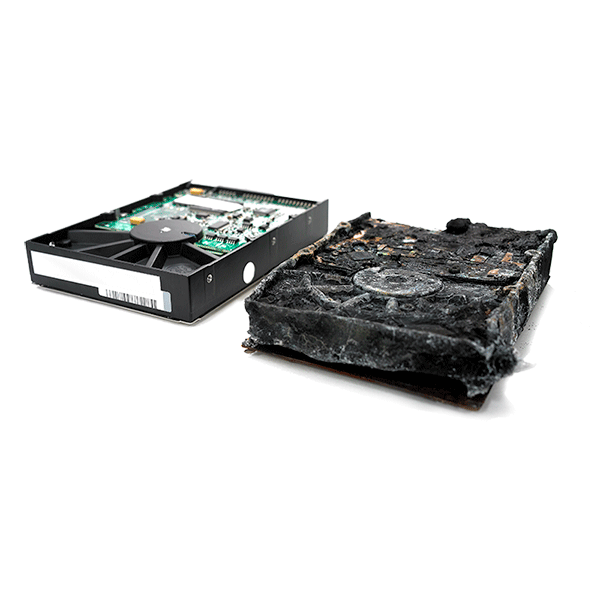
E-mail Recovery fra et defekt lagringsmedie

Det er kompliceret at gendanne e-mail fra beskadigede harddiske. Et forsøg kan beskadige dataene yderligere.

Vi anbefaler at kontakte Ibas for at få nogle gode råd, før du tager situationen i egen hånd. Du har sandsynligvis behov for en rekonstruktion af hele disken, før der bliver adgang til de data, du har brug for.

damaged-tape

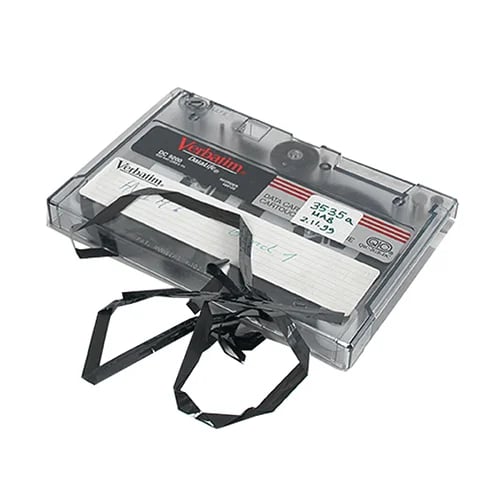
Email extraction fra tape medier 

Ibas tilbyder EDB og PST-fil extraction fra Microsoft Exchange mail. Ved hjælp af en tidligere komplet backup kan vi gendanne mailkontoer til nye medier, servere eller til en ny eller allerede eksisterende PST-fil.

boxshot-opcexchange-shadow

Hvornår kan jeg bruge software?

For at kunne rekonstruere et mailprogram skal data være gemt lokalt på din computer, mobiltelefon, tablet eller smartphone.

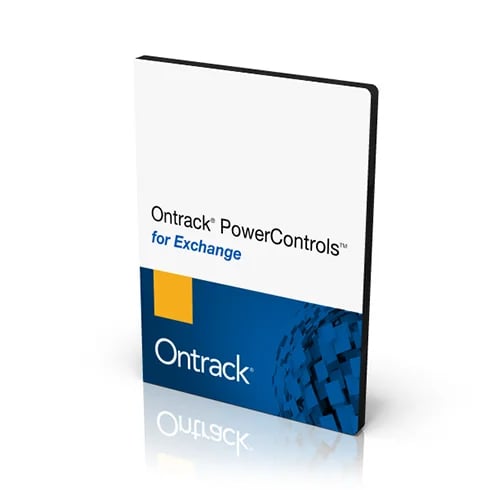
Hvis det er en såkaldt logisk fejl, der er årsag til problemet, kan du prøve vores gør-det-selv produkter, Ontrack EasyRecovery eller Ontrack PowerControls.

If your email has not been backed up to a hardware device, and/or you do not know your login credentials, please contact the provider for assistance.

Hvorfor Ibas Ontrack

Flere servicetilbud

Flere servicetilbud

Ibas Ontrack tilbuds fleksible servicetilbud til at imødekomme dine unikke behov og budgetmæssige overvejelser. Vores eksperter er på standby 24/7/365.

Fuldstændig gennemsigtighed

Fuldstændig gennemsigtighed

Vi ønsker, at du har kontrol over din datarekonstruktionsproces. Du ved præcis, hvad der kan rekonstrueres, før du betaler.

Uovertruffen global ekspertise

Uovertruffen global ekspertise

Bakket op af verdens største R&D-team har vi viden og evner til at imødekomme dine unikke datarekonstruktionsbehov.

Hvad Siger Vores Kunder Om Vores Data Recovery Service

4-trins Data Recovery Proces

Vi sikrer, at vores proces er gennemsigtig, hurtig og sikker. Du vil blive informeret hvert trin på vejen for fuldstændig ro i sindet.

Konsultation Konsultation
Konsultation

Gratis konsultation med hurtig og direkte adgang til specialister. Kontakt vores eksperter direkte for at få omfattende rådgivning om datarekonstruktion og et uforpligtende tilbud. Tilgængelig 24/7 i nødsituationer.

Evaluering Evaluering
Evaluering

Når vi har modtaget din lagringsenhed, foretager vores erfarne teknikere en grundig evaluering. Vi tilstræber at hurtigt give dig oplysninger om, hvor meget data vi forventer at kunne redde, hvor lang tid det vil tage og til hvilke faste omkostninger. Nogle gange er det nødvendigt med en mere omfattende diagnose, og vi vil informere dig om alle dine muligheder under hele forløbet.

Rekonstruktion af data Rekonstruktion af data
Rekonstruktion af data

Med din godkendelse rekonstruerer vi dine data baseret på dit valgte serviceniveau. Via vores sikre portal kan du følge med i status for din rekonstruktion.

Returnering af data Returnering af data
Returnering af data

Når dine data er blevet rekonstrueret, sender vi dem tilbage til dig på en ny krypteret ekstern enhed ved hjælp af vores dag-til-dag leveringstjeneste.

Hvor hurtigt bliver opgaven udført?

Vores team af betroede eksperter er på standby for at hjælpe. Vi tilbyder fleksible servicetilbud for at imødekomme dine unikke behov og budgetmæssige overvejelser.

Emergency

Emergency

24/7

Priority

Express

3- 5 arbejdsdage

Standard

Standard

7-10 arbejdsdage

Can I recover files from a crashed Mac system using a recovery drive?

You can recover files from a crashed system using a bootable media/recovery drive with the help of Ontrack EasyRecovery Technician for Mac.

Are there any extra charges for a data recovery evaluation at the Austin Ontrack?

No. Ontrack's entire evaluation process is free.

How long does the Austin data recovery service take?

Each data recovery is unique, and the completion time varies based on the complexity of the job. After the initial evaluation, we provide will you with an estimate of time for the completion of the service.

How will my recovered data be returned to me?

Upon completion, your recovered data will be extracted onto an encrypted external drive and shipped to you wherever you are in Austin, or the world.

Are there any extra charges for a data recovery evaluation at the Boston Ontrack?

Our entire evaluation process is free, and we target a four-hour turnaround for the initial report.

How long does the Boston data recovery service take?

Our Boston data recovery service is quick, efficient and reliable. Even though every data recovery job is unique, Ontrack strives to have an initial report with an estimate of time for the completion of the service within 4 hours of our receipt of the device.

Is there a charge for shipping a device to your Boston data recovery office?

No, Ontrack pays the cost of shipping to our facilities. You'll receive a free shipping label once your data recovery quote is submitted.

What information is included in the free evaluation report from Boston Ontrack?

Our data recovery technicians will provide you with our initial report, including the potential for success, and also describes the possible challenges we might encounter.

Are there any extra charges for a data recovery evaluation at the Chicago Ontrack?

There are never any hidden fees during our evaluation process.

How long does the Chicago data recovery service take?

Completion time varies based on the complexity of the job. After our evaluation, we provide will you with an estimate of time for the completion of the service.

Is there a charge for shipping a device to your Chicago Data Recovery office?

No, Ontrack never charges for shipping to our office. We will supply a prepaid shipping label upon receipt of your quote request.

What information is included in the free evaluation report from Chicago Ontrack?

Our Chicago data recovery office provides the free evaluation which includes our initial assessment, potential for success and a description of the possible challenges we may encounter during the recovery.

What is the cost of a data recovery evaluation from the Chicago Ontrack?

Our evaluation is entirely free, and we aim to get you an estimated time for recovery within 4 hours of receiving the device.

How do backup files become damaged or corrupted?

Backup files can become corrupt in a number of ways:
  • Large backup files may become damaged while copying to other devices
  • Backups were accidentally or intentionally deleted
  • Files may be damaged during encryption

What type of damage can you help with?

We can help retrieve data from devices affected by water damage, fire damage, heat damage, and lightning strike and power surges, as well as those that have been dropped. If you're not sure if we can help, get in touch!

What is data destruction?

Erasure software is used before the drives are transported to equipment for physical destruction to eliminate the possibility of data being intercepted during transport. Physical destruction on hard disk drives can be done with a degausser that uses a powerful magnetic field, which erases not only the data but removes the servo tracks, making the media unusable. The most permanent and final destruction solution involves the use of granulators, also known as shredders. These machines rip, tear, or smash a hard drive or SSD into pieces so small that data cannot be recovered from the media or memory chips.

What is the goal of secure data destruction?

The main objective of secure data destruction is to make it impossible to recover data from a data storage device that is no longer in use by an individual or organization. Destroying this data reduces the risks of identity theft, financial theft, reputational harm, or corporate espionage.

Are data destruction and data sanitization the same thing?

The terms data destruction and data sanitization are sometimes used interchangeably, but they are not the same. Data destruction is more of a general term used to describe the process of removing data from computer hard drives, mobile devices, tape, and other types of storage media. While that may sound like what you need—data destruction doesn't make the data permanently unrecoverable. When sensitive data has reached its end-of-life, data sanitization must be employed to intentionally and permanently destroy it by overwriting (wiping), degaussing, and shredding the media, which includes verification and certification.

Can you recover data from a shredded hard drive or SSD?

If best practices are followed during data destruction, there is no way to recover data from a shredded hard drive or SSD, especially if data erasure software or a degausser (HDD) was used before shredding. However, if a drive was not erased before shredding and the equipment was not set up to create small enough pieces, a full memory chip might be knocked off an SSD without being destroyed, which can be recovered by a data recovery expert like Ontrack. Improper setup of a shredder/granulator could also lead to an entire disk platter being left intact after a drive is run through shredder set up for a much larger enterprise drive, but such an occurrence would be highly unlikely.

Does data destruction remove windows?

Physical data destruction such as degaussing or shredding will make a hard disk drive or SSD inoperable so that none of the data, software, or other programs on the device will function. Erasure software can be used in such a manner that it erases only specific files, leaving Windows or other operating systems intact when an organization desires to repurpose the asset after wiping the data. The comprehensive approach to drive eraser software will remove all data and programs, including the operating system.

Does degaussing a hard drive make it non-functional?

When degaussing a traditional hard drive, the magnetically coated platters that store data are completely erased. Degaussing involves subjecting a hard drive to a magnetic field, which essentially demagnetizes the platters. The drive is rendered completely inoperable because there are no longer tracks and sectors on the platter which are used to organize and locate data. Degaussing provides permanent removal of data and is recommended as a step in the data sanitization of traditional hard drives, tape, and other magnetic media. After degaussing, devices can be physically destroyed using a special shredder—the process guards against the possibility of any potential for possible data recovery.

Does destroying a hard drive with a hammer make it unrecoverable?

We've seen videos of do-it-yourself data destruction with nail guns, hammers, and automobiles. And while these methods physically destroy devices, they don't provide a verifiable, certified method to ensure data is inaccessible and unrecoverable. Destroying a hard drive with a hammer might render it inoperable, but because Ontrack engineers are known for their miraculous data recovery rescues (including a hard drive from the crashed Space Shuttle), anything is possible.

What are the top advantages of hard drive and SSD granulators?

Granulators, also known as shredders, are machines that rip, tear or smash a hard drive or SSD into small pieces, making it inoperable and not possible to recover any data. Data that is no longer need by the organization for the business, legal, or retention requirements can be safely and permanently destroyed using a granulator. Organizations can reduce the risk of security breaches and reduce storage costs by disposing of data no longer needed.

What is secure data destruction?

Best practices for secure data destruction involve using data erasure software to securely overwrite data on hard drives and SSDs, including the hidden areas and remapped sectors. Erasure is done per government standards such as NIST, DOD, and many more. Erasure software is used before the drives are transported to equipment for physical destruction to eliminate the possibility of data being intercepted during transport. Physical destruction on hard disk drives can be done with a degausser that uses a powerful magnetic field, which erases not only the data but removes the servo tracks, making the media unusable.The most permanent and final destruction solution involves the use of granulators, also known as shredders. These machines rip, tear, or smash a hard drive or SSD into pieces so small that data cannot be recovered from the media or memory chips.

What is the best way to safely dispose of hard drives and SSDs?

Best practices involve using data erasure software to securely overwrite data on hard drives and SSDs, including the hidden areas and remapped sectors. Erasure is done per government standards such as NIST, DOD, and many more. Erasure software is used before the drives are transported to equipment for physical destruction to eliminate the possibility of data being intercepted during transport.Physical destruction of hard disk drives can be done with a degausser that uses a powerful magnetic field, which erases not only the data but removes the servo tracks, making the media unusable. The most permanent and final destruction solution involves the use of granulators, also known as shredders. These machines rip, tear, or smash a hard drive or SSD into pieces so small that data cannot be recovered from the media or memory chips.

What is the primary goal of secure data destruction?

The main objective of secure data destruction is to make it impossible to recover data from a data storage device that is no longer in use by an individual or organization. Destroying this data reduces the risks of identity theft, financial theft, reputational harm, or corporate espionage.

Why is data destruction important?

Data on storage devices no longer in use by an individual or for business purposes by an organization has the chance of being accessed by threat actors who may use the data for identity theft, compromising privacy, financial theft, reputational harm, or corporate espionage. Once the data is destroyed, it is no longer available to those who would choose to use the data in this manner.

Can I request the erasure of my personal data?

The secure way to erase your personal data from a device you own is to use data erasure software to remove all data from the hard disk drive or SSD. Requests for Ontrack to remove personal data we have collected about you can be sent to Ontrack American Data Privacy Queries, Attn: Jason Davison, 8201 Greensboro Drive, Suite 300, McLean, VA 22102-3810 per the Ontrack Privacy Policy.

Counter to what you usually do. What is the best way in your opinion to make sure the data isn’t recoverable?

Make sure all the NAND chips are broken for destruction or use an erasure software that has been validated by Ontrack.

Does data erasure remove files and clean the drive?

Data erasure is the removal of data from a storage device such that it cannot be recovered. Data erasure software repeatedly writes a pattern of 1's and 0's over all of the data locations on a hard drive or SSD so that the original data is no longer accessible. The software also removes all data from temporary locations. File erasure software allows the user to target all instances of specific files to be erased, instead of wiping all data from the entire storage media.

How do I erase data from an iPhone without an internet connection?

  • Download and install mobile eraser software on a computer.
  • Run the eraser software. Connect the iPhone to the computer with a connector cable (Lightning to USB is typical).
  • Power the iPhone on and unlock the phone.
  • Locate the iPhone from the erasure software running on the computer.
  • Select erase and let the software run until it states that the erase process has completed.

How do I erase data on a computer without using the internet?

  • Download and install data erasure software on a functioning computer.
  • Create an ISO image of the erasure executable and copy it to a removable USB flash drive.
  • Plug the USB flash drive into the computer to be erased. It will boot up and begin erasing the device.
  • Remove the USB drive when finished as the ISO image will run only once per license.

How do I perform a complete data erasure?

Best practices involve using data erasure software to securely overwrite data on hard drives and SSDs, including the hidden areas and remapped sectors. Erasure is done per government standards such as NIST, DOD, and many more.Erasure software is used before the drives are transported to equipment for physical destruction to eliminate the possibility of data being intercepted during transport. Physical destruction on hard disk drives can be done with a degausser that uses a powerful magnetic field, which erases not only the data but removes the servo tracks, making the media unusable. The most permanent and final destruction solution involves the use of granulators, also known as shredders. These machines rip, tear, or smash a hard drive or SSD into pieces so small that data cannot be recovered from the media or memory chips.

How long does data erasure take?

Data erasure can occur in minutes when an encryption key is digitally shredded. Otherwise, erasure can take minutes to hours, depending on the capacity and performance level of the storage media.

Should I use data erasure?

Data erasure should be used when the data on a storage device is no longer needed for business purposes, retention policy or other compliance, and legal matters, and would create risk for the organization if it were to be accessed by unintended users.

What is data erasure coding?

Erasure coding (EC) is a method of data protection in which data is broken into fragments, or sectors, expanded and encoded with redundant data pieces and stored across a set of different locations or storage media. The goal of erasure coding is to enable data that becomes corrupted at some point in the disk storage process to be reconstructed by using information about the data that's stored elsewhere in the array. Erasure codes are often used instead of traditional RAID because of their ability to reduce the time and overhead required to reconstruct data. Erasure coding can be more CPU-intensive than traditional RAID systems, resulting in increased latency.

What is data erasure?

Data erasure is the removal of data from a storage device such that it cannot be recovered. Data erasure software writes a repeating pattern of 1's and 0's over all of the data locations on a hard drive or SSD so that the original data is no longer accessible. The software also removes all data from temporary locations.

How to erase data from a hard drive without connecting to the internet

  • Download and install the data erasure software on a functioning computer.
  • Create an ISO image of the erasure executable and copy it to a removable USB flash drive.
  • Plug the USB flash drive into the computer to be erased. It will boot up and begin erasing the device.
  • Remove the USB drive when finished as the ISO image will run only once per license.

Am I able to download a license to erase an offline machine?

We do not currently offer any solution to erase offline workstations via HostedErase.

Can I download my erasure reports?

Yes - You can login to HostedErase with your provided username/password to Hostederase.com, and go to the reporting tab. There you will find all of the erasure reports you have sent when performing erasures.

How do I customize my Blancco ISO to work with HostedErase?

Please see the Blancco ISO configuration tool user guide on our Software FTP (for credentials please email support@ontrack.com). After installing and running the tool, click the communication tab. Enter Hostederase.com in the Hostname/IP fand 443 in the port field followed by your username/password.

How do I send my reports to HostedErase?

Upon erasing a disk, click the Send button. It will send your erasure report to HostedErase, which can then be viewed by logging into HostedErase with your provided username/password to Hostederase.com You can also save the reports and upload them to HostedErase later, by logging into Hostederase.com and going to the reporting tab. From there you can click the Import Button on the bottom, browse to the reports and upload them.

How is the Blancco software delivered to me?

Upon purchasing our solution, you would be given login credentials to our FTP to download the software. You would be able to use this login to get the most up to date software. If you need a copy of this login information, please email us at Support@ontrack.com.

I am unable to login to my HostedErase account. What do I do?

Email us at Support@ontrack.com with your login name and we will be able to assist.

Is there any remote capabilities for HostedErase?

Yes - Hostederase will allow you to boot the drive erasure software and control the erasure remotely from the HostedErase console.

What are the minimum requirements for using HostedErase?

We require you to connect to our management console from the erasure client, so you would need an external internet connection on the machine running the erasure software. In most cases, the computer would need to boot to USB to run the software.

What Blancco products are supported via HostedErase?

We support Blancco Drive Eraser, Blancco Mobile Erasure and Diagnostics, Blancco LUN and Blancco Removable Media Erasure.

What is HostedErase?

HostedErase is the Ontrack hosted management console for Blancco erasure products. It is a licensing and report repository.

After restoring the backup, my database does not work anymore. What can I do?

In this case, you should contact an experienced data recovery service like Ontrack to check the integrity of your database and recover the data if necessary.

Does Ontrack look at the data on my external hard drive?

No. Ontrack does not open any of your files. Our data recovery experts simply generate a file report.

How much data can be recovered from a failed external hard drive?

It really depends on the severity of the situation.The same factors that affect our chances of recovering data from a device also impact how much data we're able to get.It may be that we can access the 10MB you urgently need from an almost-destroyed hard drive, or it could be that we can recover 500TB and return your slightly-damaged storage device to working condition - either way, success for us is about what we recover, not how much.

How much will it cost to recover data from my external hard drive?

Data recovery costs vary depending on the severity of each data loss incident. For more information, contact an Ontrack specialist to request a free data recovery quote.

What if my external hard drive is encrypted?

Ontrack will need the encryption keys/passcode to properly evaluate your device.

How much does it cost to recover data from a failed hard drive?

The cost of recovering data from a damaged storage device is determined by the time and effort that goes into getting the data you need and not by the size of the drive or volume of data. This makes it difficult to give you a price without evaluating your situation first.In any case, we rely on our unmatched data recovery expertise and 35 years of industry experience to work as efficiently as possible, meaning you'll always get a great price from us.What's more, you'll have a choice of service options, each with its own price.

Do you offer data recovery from a corrupted SD card?

Ontrack offers in-lab data recovery services for recovering data from SD cards with corrupted or deleted data, or data lost from reformatting.

Are there any extra charges for a data recovery evaluation at the Fountain Valley location?

Ontrack promises that there will be no hidden fees - our evaluation is always free.

How long does the Fountain Valley data recovery service take?

The completion tome of the data recovery service depends on the complexity of the job. After our assessment, we provide an estimate for the completion of your data recovery.

Is there a charge for shipping a device to your Fountain Valley Data Recovery office?

No, Ontrack pays the cost of shipping to our facilities. For your convenience, we email you a prepaid shipping label to attach to your box. Simply drop it off with your local shipping office, or schedule a pickup at your location.

What information is included in the free evaluation report from Fountain Valley Ontrack?

Our data recovery evaluation includes our initial assessment, potential for success, and any possible challenges that might get in our way during the data recovery process.

What is the cost of a data recovery evaluation from the Fountain Valley Ontrack?

Our data recovery evaluation takes roughly 4 hours and is completely free.

Do you see data recovery getting more cost-effective or more expensive because of the different variations of firmware?

We don't see a difference in the cost of the actual recovery, but there is a time cost. When we are familiar with the drive or firmware variation, we have better support for that drive. In cases when we are seeing new drives for the first time, it can take some time to perform research and development and work with the drive manufacturer to gain knowledge of the drive and the data layout.

If you overwrite the controllers with your firmware, how do you know where the data is randomly laid out or is that stored on the flash itself?

We are not overwriting the drives firmware but more sideloading a version of our custom firmware that then interfaces with the 'drive's firmware. This is used to apply low-level operations that are not typically supported without our firmware directly interfacing the firmware of the drive.

Can Ontrack recover my data?

Without the chance to evaluate your hard drive, we really can't say for sure. The full answer will depend on the severity of the damage (if any), the length of time since your data was lost and the hard drive type among other factors.However, with more than three decades of experience and the best resources to hand, it's highly likely we can get the data you need.So far, we've completed more than 600,000 recoveries with a 90% success rate.

What is included in the free evaluation report?

The free evaluation report includes:
  • An assessment of the job, explaining the odds for successful recovery
  • A description of the challenges that Ontrack may encounter during the recovery

What will be included in the evaluation report?

Your free, no-obligation evaluation report will provide an estimate of how much of your data we expect to recover, how long we think the recovery will take, and how much it will cost. There are no hidden costs, and we aim to have the report with you within 4 hours.

How long does the data recovery service take?

Each data recovery is unique, and the completion time varies based on the complexity of the job. After the initial evaluation, we provide will you with an estimate of time for the completion of the service.

What information is included in the free evaluation report?

The free evaluation report provides you with an assessment of the job, including the potential for success, and also describes the possible challenges we might encounter.

How will my recovered data be organized?

Our goal is to restore your files to as close to their original folder structure as possible. However, there are some cases where irreparable damage to the media or directory prevents us from delivering a perfect file structure. In these situations, we organize your recovered files by their file type such as spreadsheets, word processing, presentations, etc.

How will my recovered data be returned to me?

Upon completion, your recovered data can be downloaded via a secure Internet connection, or we will load it onto an encrypted external drive and ship it to you.

Is there a charge for shipping a device to your data recovery office?

No, Ontrack pays the cost of shipping to our facilities. For your convenience, we email you a prepaid shipping label to attach to your box. Simply drop it off with your local shipping office, or schedule a pickup at your location.

What other types of devices does Ontrack work with?

As well as external hard drives, we recover data from:
  • Laptop and desktop hard drives
  • Servers
  • Mobile phones
  • Tablets
  • SD cards
  • …and pretty much any other form of digital data storage

Can Ontrack be trusted to handle extremely sensitive data?

Yes. Ontrack's Labs are ISO 27001 Certified. Ontrack also receives an annual SOC 2 (formerly SAS 70 II) report from a certified audit firm.

Are there any fees for Ontrack Tech Support?

Ontrack Tech Support is free, and available Monday - Friday from 7:30 am - 6:00 pm Central Standard Time (CST).

What are the most common types of storage system failures?

The most common types of storage system failures are hardware failures, software failures, and user error. Hardware Failures like failed drives failed controllers, or power issues can be caused by natural disasters such as fire and floods. Power issues such as loss of power, power cycling, and power surges can lead to data loss, especially in the case of a RAID running in a degraded state, which is vulnerable to data loss and file system corruption. Software failures can be caused by failed RAID rebuilds, snapshot management errors, or metadata corruption. User errors such as deleted data, deleted snapshots, deleted volumes, overwritten volumes, reformatting, or reinstalling volumes can lead to data loss. Ontrack can recover data for all of these scenarios if the systems are shutdown when the problems are detected.

Are there any extra charges for a data recovery evaluation at the Houston location?

The entire evaluation process is free.

How long does the Houston data recovery service take?

After the initial evaluation, we provide will you with an estimate of time for the completion of the service.

Is there a charge for shipping a device to your Houston data recovery office?

Ontrack will always cover the charge for shipping to our facilities. We provide you with a shipping label, all you need to do is drop it off with your local shipping office, or schedule a pickup at your location.

What information is included in the free evaluation report from Houston Ontrack?

  • An assessment of the job
  • Potential for success
  • Any challenges we may encounter.

What is the cost of a data recovery evaluation from the Houston Ontrack?

The entire data recovery evaluation process at our Houston office is free.

Are there any extra charges for a data recovery evaluation at the Jacksonville Ontrack?

There are no hidden fees. Ontrack's entire evaluation is free - with an average turn time of 4 hours.

How long does the Jacksonville data recovery service take?

The completion time varies based on the complexity of the job. We provide will you with an estimate of time for the completion of the service.

Is there a charge for shipping a device to your Jacksonville Data Recovery office?

Ontrack doesn't charge your for shipping. We provide you with a prepaid shipping label, all you need to do is drop it at your local shipping office or schedule a pickup.

What information is included in the free evaluation report from Jacksonville Ontrack?

Our data recovery provides the free evaluation of the job, our honest assessment for possibility of success and any challenges we might encounter during the job.

What is the cost of a data recovery evaluation in Jacksonville Ontrack?

Our data recovery evaluation is free with an average turn time of 4 hours.

Are Ontrack technicians Apple-certified?

Ontrack's global team of technicians are certified by Apple as well as many other manufacturers. In addition, our proprietary Apple data recovery software allows us to achieve maximum success to overcome data corruption, deleted files, and more.

Are you able to recover data from Apple computers that use the T2 security chip?

We work closely with Apple and have a long history supporting Apple customers. The T2 security chip was introduced in 2017 and is built into the iMac Pro, Mac Pro, MacBook Pro, Mac mini and MacBook Air models. It provides advanced support for encrypted storage devices and protects data. Ontrack has provided data recovery of Macs that include the T2 chip since its inception.

Does Apple provide data recovery services?

Apple does not provide data recovery, and charges for data recovery services are not covered by Apple's warranty or AppleCare. Ontrack is authorized and recommended by Apple when data recovery is necessary and provides discounted service to Apple customers. Call us today for a free consultation and price quote.

Is the cost of data recovery covered under AppleCare?

Charges for data recovery services are not included as part of Apple's AppleCare warranty program. We recommend you contact Apple technical support if your computer doesn't start up. They can offer advice and set up appointments at your local Apple Authorized retailer. If you are still not able to start up or access your hard drive after communicating with Apple, please contact us for a free consultation and estimate for data recovery.

Will Ontrack's data recovery service void my Apple warranty?

Ontrack is authorized and recommended by Apple to recover data from their computers and mobile devices. Our work will not void your Apple warranty.

How do you recover from corrupted SQL files?

Ontrack uses a number of techniques and custom software to extract, rebuild, and recreate corrupted SQL database files. With unique expertise and capabilities, Ontrack excels at recovering databases from the most challenging data loss scenarios.

Does implementing SSD storage introduce difficulties for Microsoft SQL Server recovery?

Before making a move to an SSD-based SQL Server data stores, CTOs need to decide:
  • How great a risk SSD failure poses to SQL Server recovery operations.
  • Which technology provides the best balance of performance and reliability (SSD vs. HDD).
  • How to monitor the SSD drives on which logs are stored to assess health.
  • How to recover data from a failed SSD in the event of a disaster or drive failure.
It is also important to remember that the strongest feature of SSDs - a lack of moving parts - is also one of the greatest weaknesses. SQL data recovery from a failed SSD drive is an expert job, usually requiring professional assistance. Where platters could be removed and cloned from a traditional spinning disk in a cleanroom environment, SSD memory chips are typically harder to recover.Data recovery from SSD memory cells is possible, but it remains a complicated procedure. And because any SQL Server deployment needs to include data recovery provisions as part of its plan, CTOs and systems architects need to consider and mitigate the impact SSD outages can have on availability.

How does a page-level restore improve SQL Server recovery provisions?

For very large Microsoft SQL Server databases, a complete restore operation can take many hours. During this time the database cannot be used to prevent data being entered and lost as information is copied back from tape or disk. In a high-availability environment, any downtime is costly, so keeping it to a minimum is essential.Fortunately, page-level restore techniques can be used to keep recovery times to a minimum by reducing the amount of data that needs to copied back from the backup media. Since the release of Microsoft SQL Server 2005, DBAs have had the option of carrying out a 'page level restore' which allows them to recover a 'handful' of pages, rather than having to restore entire datasets and copy the information back into the original database.The page-level restore operation is perfect for situations where data becomes corrupted during writes through a faulty disk controller, misconfigured antivirus software or an IO subsystem. Better still, restore level operations can be performed online for Enterprise editions of Microsoft SQL Server.

How Does In Memory Computing Affect SQL Server Recovery?

Built-in provisionsHekaton allows DBAs to select high priority tables and objects that need to be stored in RAM for super-fast querying. However, the underlying architecture has also been engineered to create a localized backup of that data:Transaction logJust like a standard disk-based database, Hekaton also relies on a transaction log record to track operations, and assist with SQL Server recovery. To ensure complete coverage, Hekaton integrates both disk-based and memory-based transaction logs, writing both to disk in batches.Understanding the Data FileRather than the traditional page structures used for data rows, Hekaton uses a pair of sequential files - Data and Delta files. The Data file contains free-form data rows that are then linked using in-memory indexes. Every time a row is changed by an INSERT or UPDATE statement, the changed row is appended to the end of the Data file.To maintain the speed of operation and to maintain an accurate audit trail, when a row is deleted or updated from an in-memory table, it is not removed from, or changed in the Data file.

What Do I Need For A Successful Microsoft SQL Server Database Restore?

A full backupJust like any other file on the network, the key to a successful database recovery is to have a full, current backup of the MDB and MDF files. You should be taking incremental copies of the database files at least once a day, combined with a full backup at least once a week.A log file backupA 100% accurate database restore is reliant on having a completely up-to-date set of log files that corresponds with data access and update operations. For industries that are heavily regulated, like finance and banking, the log files are essential to prove compliance.Microsoft is keen to point out that you must have "enough” log backups available for a restore sequence, including the tail-log backup, before beginning the process.Sufficient spare disk capacityIn order to test the restored data is correct, you will need to restore the database elsewhere first. This will then give you a chance to test the restored data and ensure that there is no corruption, and that you have an up-to-date set of records that gives a true indication of state before the crash/deletion/corruption.

Do I need to ship my desktop computer to an Ontrack office for data recovery?

In a data loss situation where you can access the hard drive inside your desktop computer's case, you may disconnect and remove it to ship it to us. Some hard drives are linked to secondary SSD storage devices, which are known as hybrid drives (SSHD), or Fusion drives made by Apple. If your desktop computer contains this type of drive, we will need both storage devices to achieve a successful data recovery. Ontrack also offers Remote Data Recovery service for functional computers and storage systems. Contact us today for more information: https://www.ontrack.com/contact-us/

How can I recover deleted files from my computer?

Before moving forward with the recovery of the deleted files, discontinue using the computer, so the files you need aren't permanently erased by overwriting. Ontrack's EasyRecovery software allows you to recover one gigabyte of deleted files for free. If you need to recover more files, you can purchase a license on our website. The program is available for Mac and Windows and is perfect for recovering deleted photos, music, videos, and much more. https://www.ontrack.com/products/data-recovery-software/

How do I recover data when my computer won’t boot up?

There are many potential reasons why a computer won't boot up. You might have a problem related to power if you press the power on button, and you don't hear any sound such as chime or beep, or the display doesn't illuminate. Always check the power cord first to be sure it is properly attached, and a power strip to ensure it is working properly.If the PC is receiving power but isn't finding the hard drive, check the BIOs by pressing Delete, F2, or another key identified by the manufacturer to enter setup. In the BIOs screen, check the boot order, so the hard drive is selected. If you don't see a hard drive, you will need to replace it and restore from a backup or contact Ontrack for data recovery.

Is my computer warranty still valid when data recovery is performed by Ontrack?

Ontrack has partnerships with all the major storage device and computer manufacturers. We are authorized to perform data recovery on their hard drives and other devices without the risk of voiding the original device manufacturer's warranty. Top computer makers such as Dell®, Apple®, HP®, and Lenovo® recommend Ontrack for data recovery service.

Why are files disappearing from my hard drive?

To recover missing files, download Ontrack's EasyRecovery software, which recovers up one gigabyte of deleted files free of charge. If files are consistently disappearing from the hard drive, it could indicate corruption of the file system. Corruption can occur if the computer isn't properly shut down or has lost power while writing data to the hard drive. Running the Windows CHKDSK program in Windows, or Apple Disk utility, if you're using a Mac, can fix minor file corruption and help prevent the problem from reoccurring.

Can Ontrack be trusted to handle extremely sensitive data?

Yes. Ontrack's Labs are ISO 27001 Certified. Ontrack also receives an annual SOC 2 (formerly SAS 70 II) report from a certified audit firm.

Can Ontrack recover my data?

Without the chance to evaluate your hard drive, we really can't say for sure. The full answer will depend on the severity of the damage (if any), the length of time since your data was lost and the hard drive type among other factors.However, with more than three decades of experience and the best resources to hand, it's highly likely we can get the data you need.So far, we've completed more than 600,000 recoveries with a 90% success rate.

Does Ontrack look at the data on my external hard drive?

No. Ontrack does not open any of your files. Our data recovery experts simply generate a file report.

How much data can be recovered from a failed external hard drive?

It really depends on the severity of the situation.The same factors that affect our chances of recovering data from a device also impact how much data we're able to get.It may be that we can access the 10MB you urgently need from an almost-destroyed hard drive, or it could be that we can recover 500TB and return your slightly-damaged storage device to working condition - either way, success for us is about what we recover, not how much.

How much does it cost to recover data from a failed hard drive?

The cost of recovering data from a damaged storage device is determined by the time and effort that goes into getting the data you need and not by the size of the drive or volume of data. This makes it difficult to give you a price without evaluating your situation first.In any case, we rely on our unmatched data recovery expertise and 35 years of industry experience to work as efficiently as possible, meaning you'll always get a great price from us.What's more, you'll have a choice of service options, each with its own price.

How much will it cost to recover data from my external hard drive?

Data recovery costs vary depending on the severity of each data loss incident. For more information, contact an Ontrack specialist to request a free data recovery quote.

What if my external hard drive is encrypted?

Ontrack will need the encryption keys/passcode to properly evaluate your device.

What other types of devices does Ontrack work with?

As well as external hard drives, we recover data from:
  • Laptop and desktop hard drives
  • Servers
  • Mobile phones
  • Tablets
  • SD cards
  • …and pretty much any other form of digital data storage

Can I put my fire damaged device in the fridge to cool it down?

Never place an electronic device in a refrigerator or freezer as an attempt to cool it. Just as extreme heat can cause damage to your device, so can excessive cold temperatures. The sharp drop from hot to cold can lead to condensation which will damage the internal components of the device, rendering it unusable.

How can I protect electronics from heat or fire damage?

Fire may not always be preventable, so having a good response system should an incident occur is highly recommended. Survey the areas where your electronics are stored and ensure that Highly Sensitive Smoke Detection (HSSD), automatic sprinkler systems and clean agent extinguishing systems are properly installed. Keeping your devices out of direct sunlight and away from tight spaces with other electronic devices that may generate heat is also important. Remember, any source of heat can cause damage.

How does fire affect devices?

Extreme heat has the ability to damage both the external and internal electronics of your device. The exact amount of damage depends on the intensity of the fire.

What should I do if my device has fire damage?

Do not turn the device on. While fire damage is usually noticeable, smoke damage may not always be visible. Powering up the device can cause further damage, as any hidden soot can cause it to crash. In the same vein, a hard drive that has sustained comprehensive external damage may be perfectly operable internally. In either case, it's important to take caution and have the drive checked by a professional data recovery specialist as soon as possible.

How much heat can a laptop withstand?

Short timeframes of exposure to temperatures of 100° Fahrenheit may not cause any major damage, however, exposure at 200° Fahrenheit will most likely lead to some corruption of data. Exposure at 300° Fahrenheit or higher can cause more extensive damage, warping HDDs and platters and de-soldering your device's electronic connections.

How has data recovery changed with NVME/Flash vs old spinning disk for recovery percentages?

Ontrack is leading the way in terms of research and development expenditures for SSD data recovery, and we continue to learn and develop new recovery methods all the time.

Can you repair a hard drive that isn’t spinning?

A hard drive that isn't spinning could indicate a mechanical problem. For the safety of your essential data, you should turn off the drive or computer as soon as possible and contact us for further advice. If a hard drive spins up and then stops after a few seconds, it could indicate damage to the platters inside the housing. Damage can occur when the read/write heads scrape the surface of the drive platters. This condition is known as a head crash. To ensure the potential for a successful data recovery, do not leave the drive powered on or allow it to cycle on and off. The longer a drive with a head crash is left running, the more damage that can occur.

Does hard drive data recovery always need to be performed in a cleanroom?

A cleanroom is a static and dustfree environment that protects a hard drive's platters during the data recovery process. If a hard drive has suffered mechanical failure or physical damage, the sealed mechanism will need to be opened in a cleanroom to access internal components such as the actuator assembly, read/write heads, and the magnetically-coated platters that hold data.

Are there any extra charges for a data recovery evaluation at the McLean location?

There are never any hidden fees and the entire evaluation process is free, and we target a four-hour turnaround for the initial report.

How long does the McLean data recovery service take?

Although every data loss scenario is unique, Ontrack's aims to complete the intial evaluation within 4 hours, after which we will provide you with an estimate on the full recovery.

Is there a charge for shipping a device to your McLean Data Recovery office?

No, Ontrack pays the cost of shipping to our facilities. We will provide you with a free shipping label immediately after your request for quote is submitted.

What information is included in the free evaluation report from McLean Ontrack?

Our McLean data recovery evaluation includes our initial assessment, our potential for recovery success, and the possible issues we might encounter during the recovery process.

What is the cost of a data recovery evaluation from the McLean Ontrack?

Ontrack evaluations are always 100% free.

Are there any extra charges for a data recovery evaluation at the Minneapolis location?

Minneapolis will never charge you for our data recovery evaluation. Upon receipt of your device, Ontrack will aim to get you a response within 4 hours.

How long does the Minneapolis data recovery service take?

While each recovery is unique, time varies based on the complexity of the job.

Is there a charge for shipping a device to your Minneapolis data recovery office?

Ontrack provides prepaid shipping labels to our customers so there will never be a cost to send us your device.

What is the cost of a data recovery evaluation from the Minneapolis Ontrack?

The entire data recovery evaluation process at our Minneapolis office is free.

What information is included in the free evaluation report from Minneapolis Ontrack?

Our Minneapolis data recovery evaluation includes:
  • Our honest assessment of the job and likelyhood for recovery
  • Any challenges we think could arise during the recovery

How do hard drives fail?

Because traditional hard drives have delicate moving parts inside, they are more susceptible to failure than newer solid-state drives (SSDs). But, both types of drives can fail, making your data inaccessible and requiring a data recovery service professional to extract the needed files. Some of the most common ways that traditional hard drives fail is circuit board or motor failure, impact damage, media damage (head crash), and "stiction” where the read/write heads are stuck to the magnetically coated platters. Solid-state drives provide a more durable solution and are less susceptible to failure. But, like traditional hard drives, they too can suffer from electronic failure, firmware corruption, and simply wear out over time.

Is it safe to open my hard drive?

Standard hard drives that contain internal spinning platters require a cleanroom—a special static and dust-free environment that allows technicians to access components inside the drive housing. It is not safe to open a hard drive outside of a cleanroom and doing so allows dust particles to enter the mechanism.Even airborne microscopic particles can cause the drive to malfunction, and the read/write heads will damage the platter surfaces. This reduces the chances for your data to be recovered and makes future attempts by a professional data recovery company difficult to impossible. If your files are irreplaceable and no backup exists, call us immediately for help.

What is the hard drive “click of death”?

You may have come across the phrase "click of death” when searching the Internet for answers about your clicking hard drive. The term is frequently used to describe the repetitive clicking sound a hard drive makes when it is unable to access specific areas on the platters or because of firmware corruption. Originally, the phrase was used to describe issues that were specific to removable media produced and sold in the late 1990s. It was later adopted by owners of hard drives who experienced similar symptoms with their hard drives. The clicking sound itself is caused by the hard drive recalibrating as the read/write heads inside try to locate inaccessible data. In some situations, the problem is caused by the corruption of firmware, which contains programming data needed for the drive to function properly. In other cases, the problem is caused by damage to the hard drive platters, which is known as a "head crash.” In the latter case, discontinue the use of the drive as soon as possible and contact us for data recovery. Continuing to allow the hard drive to spin and click can cause irreparable damage and affect the outcome for potential data recovery.

When should I replace my hard drive?

Historically, hard drive manufacturers assigned a Mean Time Between Failure (MTBF) rating to their storage devices based on testing in a controlled environment with a number of continuously running drives. The MTBF was the manufacturer's best guess as to how long a hard drive could function properly before it needed to be replaced. More recently, manufacturers have begun using a different way to rank drive reliability known as the Annualized Failure Rate (AFR.) AFR provides an estimate of how likely a hard drive is to fail during a full year of use. Traditional hard drives—those which contain spinning hard disk platters are currently rated to last approximately three-five years. Because solid-state drives (SSDs) do not have moving parts, they may last longer, but it depends on how much they are used. Whenever you purchase a new hard drive, it's a good idea to review the specifications to identify its expected lifespan. Generally speaking, you should consider replacing your hard drive every three to five years, particularly if you are using your computer for tasks that require lots of drive usage such as video editing, audio production, graphic design, gaming, or high-end functions in a server environment.

Why does my hard drive make clicking sounds?

Mechanical hard drives that contain spinning platters make clicking (or ticking) sounds for different reasons. As part of normal functions, the drive will make clicking sounds whenever the computer or the external drive are switched on. You can even hear a recognizable rhythm to the sounds emanating from the drive when it first spins up. Beyond these perfectly normal sounds, a hard drive that clicks repeatedly can indicate a problem that could cause serious data loss. If your data is properly backed up, you can typically replace the drive with a new one and restore your data by transferring it to the new drive. However, if you find that your important files were not backed up, switch off the computer or the external drive as soon as possible and contact Ontrack for a free consultation.

Will putting a bad hard drive in the freezer make it work?

Unfortunately, placing a hard drive into a freezer will not bring it back to life. This piece of advice was valid for hard drives manufactured roughly between 1989-1995 and was identified as a way to solve a unique problem known as "stiction.” The word stiction is derived from the words "static” and "friction” and was used to describe an issue where the read/write heads stuck to the platters preventing the motor from spinning. In theory, placing a hard drive into a freezer was meant to help free the stuck heads through the contraction of the metal components. As many people discovered, this wasn't always successful. Today, modern hard drives are manufactured differently from those early days, and stiction is an infrequent problem. With the massive amount of information available on the internet, the old "freezer trick” tip lives on even though it has no affect on modern hard drives.

Are there any extra charges for an evaluation?

The entire evaluation process is free, and we target a four-hour turnaround for the initial report.

Can I put my heat damaged device in the fridge to cool it down?

Never place an electronic device in a refrigerator or freezer as an attempt to cool it. Just as extreme heat can cause damage to your device, so can excessive cold temperatures. The sharp drop from hot to cold can lead to condensation which will damage the internal components of the device, rendering it unusable.

How can I protect electronics from heat damage?

Circumstances of extreme heat may not always be preventable, so having a good response system should an incident occur is highly recommended. Keeping your devices out of direct sunlight and away from tight spaces with other electronic devices that may generate heat is also important. Remember, any source of heat can cause damage.

How does heat affect devices?

Heat has the ability to damage both the external and internal electronics of your device. The exact amount of damage depends on the intensity of the heat applied.

How much heat can a laptop withstand?

Short timeframes of exposure to temperatures of 100° Fahrenheit may not cause any major damage, however, exposure at 200° Fahrenheit will most likely lead to some corruption of data. Exposure at 300° Fahrenheit or higher can cause more extensive damage, warping HDDs and platters and de-soldering your device's electronic connections.

What should I do if my device has heat damage?

Do not turn the device on. While fire damage is usually noticeable, smoke damage may not always be visible. Powering up the device can cause further damage, as any hidden soot can cause it to crash. In the same vein, a hard drive that has sustained comprehensive external damage may be perfectly operable internally. In either case, it's important to take caution and have the drive checked by a professional data recovery specialist as soon as possible.

Can you explain how to recover deleted files from a laptop?

The best way to recover deleted files is to use our world-class EasyRecovery software program. Download the program for free and recover up to one gigabyte of files. EasyRecovery is available for Mac and Windows and recovers deleted files, including documents, pictures, videos, and audio from corrupted file systems, as well as reformatted drives. For the best results, stop using the laptop as soon as possible to avoid overwriting the files you want to recover. Download EasyRecovery free from our website: https://www.ontrack.com/products/data-recovery-software/

I hear a loud fan on my laptop – Is my drive going bad?

Your laptop fan will switch on when processor-intensive programs are running, or system updates are being installed. When there is a buildup of heat inside the laptop, the fan will run to cool down the processor and other electronics. This isn't an indication that your hard drive is going bad.Generally speaking, heat is bad for hard drives, and keeping the components cool inside the laptop will help preserve their longevity. To prevent the fan from switching on frequently, it is recommended that you keep the laptop off of carpeted surfaces and other areas where air doesn't circulate well.

I’ve spilled coffee on my laptop. How do I recover the data?

Any kind of liquid spilled onto a laptop can cause significant damage. Coffee, an alcoholic beverage, and even plain water can damage sensitive electronic components. Once the liquid seeps into the laptop, it can wreak havoc on the drive and other electronic parts by shorting out the circuits.With 35 years of experience leading the industry, Ontrack has recovered data from disasters where devices suffered incredible damage in fires and floods. We can get your data back.

My HP laptop won’t startup. Can Ontrack help?

No matter what brand of laptop you own, Ontrack can help. We have years of data recovery experience and partnerships with all of the major computer manufacturers, including HP®, Dell®, Lenovo®, and Apple®. If you have you already tried the troubleshooting steps identified by the manufacturer's support team, and you don't have a current backup of your files, contact Ontrack for information about our laptop data recovery service.

My laptop is making noises – What should I do?

Two common components built into laptops that create noise are the fan and the hard drive. In the case of the latter, solid-state devices (known as SSDs) are built into modern laptops and run silently. Laptops may also include hard drives (HDDs) which contain spinning platters that are suspectable to failures. Known as a head crash, the problem can occur if the laptop is dropped or bumped while running. The impact causes the hard drive's read/write heads that float on a cushion of air to touch down and scrape the platter surface, which holds the data. Over time, platter damage becomes worse until the read/write heads are unable to function. A strong indicator of a head crash is a repeated clicking sound emanating from the hard drive. If the drive is clicking, turn off the laptop as soon as possible. Allowing it to continue to run will cause irreparable damage.If you have critical data on the laptop and do not have a current backup, contact Ontrack for information on our data recovery service.

Can a brownout or power outage damage my hard drive?

It is unlikely that a power incident could cause physical damage to your hard drive. However, there are cases where platter damage can happen if a power outage occurs when the drive is actively writing to the disk.

Do surge protectors protect my electronic device against lightning?

While surge protectors offer an added measure of protection against lightning strikes, the only way to completely protect your device against damage caused by lightning strikes, power outages or power surges is to unplug them.

How can I prevent data loss during a brownout or power surge?

For business-critical data storage, we highly recommend installing an uninterruptible power source (UPS) to help prevent data loss during a power surge incident. Created as a continuous power supply system, a UPS administers emergency power to electronic devices when main sources of power fail or are interrupted. It also bears repeating that backing up your data is a must.

How can I protect my electronics during a power outage?

The only surefire way to prevent power surges from affecting your device is to completely remove it from its power source (i.e., unplugging it). Understandably, this measure may not be ideal in most cases. Therefore, making sure that all digital electronics are connected through high-quality surge protectors is the next best defense against an electrical power surge.

What happens when my electronic device is struck by lightning?

The damage sustained from lightning depends on whether the strike is direct or indirect. A direct lightning strike may cause significant structural damage and result in the device catching fire. Indirect lightning strikes occur when the energetic current from a strike point travels through the ground to a nearby device. While not nearly as severe as a direct lightning strike, indirect strikes can cause major damage to devices if that are not connected to a surge protector.

Can you recover deleted text messages?

It may be possible to recover deleted text messages and other files; however, devices using flash memory are efficient in permanent removal of deleted files. Additionally, all deleted files are eventually overwritten as new data is stored on the phone through normal use. Continuing to use the phone reduces the recoverability of deleted files

How does the mobile data recovery service work?

Situations that will require data recovery from a mobile device include system corruption, electronic failure, impact, fire, and liquid damage. Whatever problem you've experienced, Ontrack has the expertise to recover your critical files. To start the data recovery process, contact Ontrack to obtain an estimate and free evaluation: https://www.ontrack.com/contact

Can you fix the home button on an Apple iPhone?

If the home button is damaged, Ontrack can provide a replacement part during the screen repair. However, the fingerprint touch ID feature will no longer work because Ontrack does not have access to Apple's calibration machine.

Can you repair a water damaged phone?

Phones with water damage are not eligible for our repair service. If we receive a water-damaged phone for repair, we will contact you with a quote for data recovery services. You may choose to either have the phone returned or proceed with the data recovery service.

Do I have to provide the passcode to my mobile phone?

You must supply your phone's passcode to Ontrack so the screen or battery replacement service can be performed. Ontrack recommends that you change your passcode when the phone is returned to you.

Do I have to send my device to Ontrack?

Yes, we will need the device in order to provide the service.

Do you offer screen or battery replacement services for tablets?

Ontrack does not offer screen or battery replacement services for tablets or laptop computers.

Do you perform in-warranty repair work for Apple or Samsung phones?

Ontrack does not perform in-warranty repair work for Apple or Samsung, or phone carriers such as Verizon, AT &T, T-Mobile, or insurance plans they offer through Asurion.

How do I find my serial number and/or IMEI?

  • On newer iPhones, serial numbers and/or IMEIs are located on the "sim card” tray as noted below. If you remove the sim card/tray to locate the IMEI number - first power off the phone. After you record the IMEI number, please reinsert the sim card/tray back into the phone before shipping it. For iPhone 6 and below, the serial # is located on the lower portion on the back cover of the phone.
  • On Samsung phones, serial numbers and/or IMEIs on Samsung phones are often found under or below the battery if it has a removable battery. To locate, be sure the phone is powered off. Remove the back cover or battery cover. Gently lift up the phones battery and remove it from the main compartment. Locate the sticker that contains the devices Serial number and/or IMEI number. Record it and reassemble the device in reverse order. If you need assistance, please contact us.
  • To locate serial numbers and/or IMEIs on devices not listed here, please contact Ontrack.
iPhone (https://support.apple.com/en-us/HT204073) On the devices below, find the IMEI/MEID on the SIM tray:
  • iPhone XS
  • iPhone XS Max
  • iPhone X
  • iPhone 8
  • iPhone 8 Plus
  • iPhone 7
  • iPhone 7 Plus
  • iPhone 6s
  • iPhone 6s Plus
On the devices below, find the IMEI/MEID (the MEID is the first 14 digits of the IMEI) on the back cover:
  • iPhone 6
  • iPhone 6 Plus
  • iPhone SE
  • iPhone 5s
  • iPhone 5c
  • iPhone 5
On the devices below, find the serial number and IMEI/MEID on the SIM tray:
  • iPhone 3G
  • iPhone 3GS
  • iPhone 4 (GSM model)
  • iPhone 4s 9
If you have an original iPhone, find the serial number and IMEI engraved on the back. iPad and iPod touch Find the serial number for your iPad Pro, iPad, or iPod touch on the back cover of the device. On an iPad (cellular model), you'll also find the IMEI. The MEID is the first 14 digits of the IMEI.

How do I find the model number of my iPhone?

If you're not sure which iPhone you own, check this guide from Apple to quickly identify your device. Most iPhones display the model number on the lower back area of the case, which begins with the letter "A". For iPhone 8 or later, remove the SIM card and check the tray.

How do I know my phone won’t incur more damage during the repair process?

Ontrack takes photos of every phone it receives before and after the repair is completed. We also run tests using 3rd party mobile diagnostics software on the phones after the repair is complete. We also include a copy of the diagnostic report with the phone when we return it to you.

How do I know the correct color of the replacement screen bezel for my phone?

To ensure the correct screen is ordered for every phone, the color of the bezel must be specified. For Apple, black or white are the only choices. The white bezel should be selected for silver, gold, rose gold and non-black colored phones.For Samsung, the screen bezel color depends on the model of the phone. Some older Samsung phones have screen-bezel assemblies that are specific to certain mobile service carriers, such as AT &T or Verizon.

How do I pay?

You can pay via Credit Card, Purchase Order, or Bank wire.

How long will it take to access my device

The turnaround time depends on the complexity of the PIN, passcode or pattern on the device. The shorter and less complex the PIN or pattern, the faster the turnaround time
  • The amount of time can be as little as one week or as long as several months. Average turnaround time is approximately 30 days.

How long will my phone repair take?

Ontrack's goal is to provide a 24-hour turnaround time starting when the phone is first received.

How much does the service cost?

Upon receipt of the device, Ontrack will perform a free comprehensive evaluation to determine the condition of the device, confirm the issue(s), and evaluate if the device is a candidate for the disabled and forgotten PIN phone service.
  • If during the free evaluation, we determine the device is a candidate for the service, there is a $500 non-refundable setup fee to begin the processing. Note: If during the free evaluation, we determine the device is not a candidate for the service, there is no charge, and we will return your device to you.
  • Upon receiving the setup fee, we will begin the processing to gain access to the disabled device, and once unlocked perform data recovery, extraction, and backup the data. A processing fee of $2,500 will be due when processing is complete and prior to receiving your recovered data, phone, and passcode back. We will send a payment link for the processing fee at the conclusion of the project.

How should I ship my device?

Package the device carefully to avoid damage in transit. Place the device in a like size box surrounded with at least two inches of bubble wrap, foam or similar packing material. We will email a pre-paid shipping label.

How will my device be returned to me?

Once Ontrack unlocks the device, we will do a full data copy (backup) typically to an external password-protected USB hard drive or flash drive. The password to the external device will be sent to you via email. The mobile device will remain locked, but accessible using the PIN, which will be sent to you in a separate email. We will then send the mobile device and back up media to you.

Is there a warranty for the mobile repair services you provide?

Ontrack provides a 90-day warranty and guarantees parts to be defect-free. All the parts Ontrack uses are of the best quality and come from approved suppliers.Some repair work we perform may void the manufacturer's warranty. Ontrack is not liable if the customer chooses to proceed with a repair on a phone that is still covered by the manufacturer's warranty. Please see our full terms and conditions which are available here.

Should I keep my phone powered on?

Yes, if possible, please keep the device powered on and fully charged.

What devices are currently covered with Ontrack Mobile Repair services?

Ontrack Mobile Repair services are only available for the specific phones listed on the Ontrack website and below:
  • Apple: iPhone X, iPhone 8 Plus, iPhone 8, iPhone 7 Plus, iPhone 7, iPhone 6s Plus, iPhone 6s, iPhone 6 Plus, iPhone 6, iPhone SE, iPhone 5s, iPhone 5c, iPhone 5.
  • Samsung: Galaxy S9 Plus, Galaxy S9, Galaxy S8 Plus, Galaxy S8 Active, Galaxy S8, Galaxy S7 Edge, Galaxy S7 Active, Galaxy S7, Galaxy S6 Edge Plus, Galaxy S6 Edge, Galaxy S6 Active, Galaxy S6.
Ontrack currently repairs only Apple and Samsung phones. However, data recovery services are available for all models and brands of phones.Ontrack is looking for repair partners to provide advanced repair work beyond screen and battery replacement. Contact us if you repair other brands of phones, and provide service to walk-in customers or onsite.

What disabled/inaccessible devices do you support as part of this service offering?

Apple Supported devices
  • Apple iPhone 4S, 5, 5c, 5S, 6, 6 Plus, 6S, 6S Plus, SE, 7, 7 Plus, 8, 8 Plus, X. XR, XS
  • Apple iPad 2, 3rd/4th Gen, iPad 5, iPad mini 1st Gen, 2, 3, 4, iPad Air, Air 2, iPad Pro
  • Apple iPod touch 5th/6th Gen
  • From iOS 5 to the latest version of iOS
Samsung Supported devices
  • Generally, most popular model Samsung phones are supported (please inquire about specific Samsung models that might not be generally available in the North American market place).
Other Supported devices
  • Other phone manufacturers that may be supported (please contact us to confirm support before shipping the device):
  • Alcatel
  • Google
  • Huawei
  • LG
  • Motorola
  • Xiaomi
  • ZTE
  • Other: Please contact us if you have a brand not listed above to confirm support before shipping the device

What happens if my phone has more damage than what is listed on the service request form?

If we receive your phone and identify damage beyond the screen/battery replacement, an Ontrack representative will contact you regarding the issues we found, share photos of the damage, and provide a diagnostic report if appropriate. If data on the phone is inaccessible, we can offer a quote for our data recovery service, and would not be able to complete the requested repair. If you already have a backup of your data, Ontrack will ship the phone back to you free of charge.

What happens if Ontrack discovers my data is inaccessible during the screen/battery replacement procedure?

If we find that your data is inaccessible during the screen/battery replacement procedure, we will contact you with a quote for data recovery services. You will have the option to proceed with the data recovery or decline the service and receive the phone back. However, if we have completed the screen or battery replacement, you would not be eligible for a refund for our repair work. Ontrack makes every attempt to ensure your data is safe and accessible during the initial inspection of the phone.

What if you can’t get into my device?

We don't' give up! As long as we deem the device compatible with our service, we will continue to make attempts until we determine the passcode or until you ask us to stop.

What services are provided by Ontrack Mobile Repair?

Ontrack Mobile Repair Services include screen and battery replacement.

Where is the mobile device repair work performed?

All the repair work is performed at Ontrack's lab in Eden Prairie, Minnesota.

Will the 3D Touch feature on an Apple iPhone still work after screen replacement?

The 3D Touch feature built into iPhone 6s and later should work after a screen replacement. However, Ontrack does not have access to Apple's calibration machine, and the 3D feature may not be calibrated to Apple's specifications.

I’ve forgotten my mobile phone passcode, can you help?

There are several technical options for unlocking a modern smartphone if you have forgotten the access code or it is no longer available after death, for example. Ontrack does not offer a service for unlocking modern blocked iPhone and Android smartphones due to forgotten access code or pattern.

Is rice a good solution for a wet phone?

If the data stored on your phone is essential, contact Ontrack as soon as possible. Liquid damage causes corrosion of the electronic components, which begins immediately. Rice can absorb some moisture, but it cannot remove all of it from inside the phone. Placing a phone in rice will delay the data recovery process and make it more difficult to recover the data.

Does Ontrack provide emergency NAS Recovery?

Emergency Service is available for all types of data loss, including from enterprise systems such as NAS, SAN, VMware, and ransomware attacks.

Can dropping my phone damage it?

While it may seem that dropping your iPhone or Android device may not be a big deal, there could be more to the damage than simply a cracked phone screen. The device may have suffered damage to its logic board or other internal components which could lead to data loss.

Can I recover data from a physically damaged hard drive?

If you suspect that your device has been physically damaged, the best option is to have it evaluated by a data recovery professional immediately, as DIY attempts to recover data from the hard drive may lead to worse damage.

How do I avoid physical damage?

Avoid physically damaging your devices by treating them with care, keeping them somewhere safe, and refraining from carrying them around unless absolutely necessary.

How does physical damage affect devices?

One of the most common effects of physical damage to your device is a hard drive head crash. When this occurs, your device's read/write head hits the platter inside the drive, causing damage to the platters and moving the head out of position. If your device has been dropped or physically damaged, be on the lookout for any whirring, clicking or popping noises - this is the sound of the read/write head trying to get back into position but hitting something in the way. The spinning parts in the hard drive can also fail, and if you drop your device, you may find that it isn't recognized when plugged into a laptop or desktop.

Strange noises

Turn off the power as soon as possible. If your hard drive is making strange clicking or grinding noises, this is a sign that your drive might have experienced a head crash and is not working properly. A head crash can result in permanent, unrecoverable damage to your files if the drive continues to run.

What is considered physical damage on phones?

Physical damage to a phone may include a cracked frame, missing keys or buttons, loose screws, a shattered or cracked screen or a discolored screen display.

Are you able to recover data from RAID level 0?

RAID level 0 (striping) spreads blocks of data across multiple drives, which help increase performance. It offers speed, but of all the levels of RAID, it is the most susceptible to potential data loss.Because data is divided into segments and distributed across the drives when one device fails, all data could be lost. Fortunately, Ontrack has over 35 years of experience and has developed hundreds of custom software utilities to address the most challenging data recovery work.

Do all the member RAID drives are required to recover data from a RAID array?

Depending on the Raid level used and data loss scenario, Ontrack may not require all drives to achieve a full recovery.

Does a RAID array provide automatic backups?

RAID systems can be configured for use as a backup drive. Software running on a computer or server manages the backups, and files are copied to a RAID which is directly attached or connected to a network as a NAS device.Because RAID systems have more than one drive and use redundancy, there is a common belief that data is protected and doesn't require a secondary backup. But, while redundancy provides some safety against data loss, there is no protection if more than one drive fails.

How common is RAID data loss?

Unfortunately, data loss is not uncommon with RAID storage. The complexity of modern hardware and software RAID, is added to by the presence of deduplication and compression. Now factor in an additional virtualization layer and the likelihood of a fault increases. RAID controllers are responsible for mapping where all information resides across the many disks at their disposal. But if a RAID configuration becomes corrupted, files can't be rebuilt. When that happens, the interconnectivity of multiple systems can potentially cause significant data loss and downtime.

Is it possible to recover data from a reformatted RAID 5 volume?

Most of the time, data is recoverable after reformatting a RAID 5 volume, depending upon the way in which it is reformatted. In the Windows operating system data is still recoverable if we reformat and create an empty volume. The original data still exists on the drive in the 'Free and Available' space. However, when a low-level format, is performed by the RAID controller utility it completely wipes every single block on a drive overwriting any data in the free space. A low-level format is slower than a high-level format.

Is it possible to recover deleted data from a Raid?

Yes. Once Ontrack engineers assemble the Raid layer, a deleted recovery on the file system used on the Raid device works the same as a single drive.

Is it possible to recover deleted data from a Raid?

Yes. Once Ontrack engineers assemble the Raid layer, a deleted recovery on the file system used on the Raid device works the same as a single drive.

What are the main causes of RAID data loss?

The #1 cause of virtual machine data loss is a hardware/RAID problem.
  • Hardware/RAID Issues - The hardware problems facing virtual systems are basically the same as in physical systems, such as failing drives, failing controllers, failing server components and power issues. But RAID corruption is a far greater challenge with VMs due to the nature of virtualization.
  • Formatting/Software Issues - Reformatting a disk, virtual disk, array, LUN, vDisk, volume, etc (or other storage media) and re-installing software are additional causes of data loss in virtualized environments. Specific to VMs, for example, there can be reformatting at the Guest or Host level.
  • Virtual File System Metadata Corruption - Metadata is even more important in virtualized environments due to the number of layers and VMs that exist. A small problem with VMFS metadata can have serious repercussions to data availability.
  • User Error - A surprisingly large amount of failures are due to virtual disks deleted by mistake, VMs being overwritten or their space reassigned. There can also be snapshot chain corruption, i.e. one of a series of snapshots is either corrupted, gets deleted or becomes unavailable for some other reason. This can foul up backups and make it difficult to recover data.

What are the most common reasons for RAID data corruption or failure?

A RAID system can fail, and data becomes inaccessible due to:
  • RAID controller failure
  • Multiple RAID hard drive failures
  • Intermittent drive functionality resulting in RAID degradation
  • Accidental reformatting of drives or the entire RAID array
  • Failed rebuild or lost RAID array configuration
  • Immediate RAID server crash due to power issues
  • Application or software corruption

What causes RAID data to become corrupted?

Reformatting a disk, virtual disk, array, LUN, vDisk, volume, etc (or other storage media) and re-installing software are additional causes of data loss in virtualized environments. Specific to VMs, for example, there can be reformatting at the Guest or Host level. Corruption can also come about due to buggy patches and updates without an offline backup, poorly planned implementation of new software, integration issues and database corruption. These issues can also cause host file corruption and guest file system damage. Thin provisioning data loss, too, should be considered

What is the difference between RAID and NAS?

RAID (Redundant Array of Independent Disks) contains multiple drives and attaches directly to a computer system. Used primarily for file storage, RAID is perfect for handling large files required by video editors and audio engineers.NAS (Network Attached Storage) is an appliance that connects via a network and provides file-sharing services. A NAS may contain multiple drives configured with RAID software, or simply contain a single drive.

What is the most reliable level of RAID?

Whether you are setting up a RAID to attach directly to a computer or connecting a NAS on a network, choosing a level of RAID depends on your requirements for performance and data safety. There are multiple levels of RAID, and each uses a specific method for data storage. Some of the most common RAID levels are: RAID 0 (striping) divides data into separate blocks that are distributed over your storage devices. It provides the fastest retrieval to your files because drive access time is reduced. You need a minimum of two drives to use RAID 0. RAID 1 (mirroring) creates an identical copy of all of your data onto another drive (or multiple drives). This helps protect the data should one of the drives fail, but you should always have a separate backup of your data in case both drives fail simultaneously—which does happen.RAID 5 (striping with parity) requires a minimum of 3 drives and offers one of the safest RAID levels. With RAID 5, data is distributed along with parity data, which adds redundancy allowing the RAID to be rebuilt when one of the drives fails.

What should I do if my RAID system crashes?

Hopefully, you have a backup of the RAID data, which would allow you to restore critical files quickly. If you don't have a backup here are some tips to help:
  • Contact manufacturer technical support for the system for help, but be sure they understand that the data is critical so no risky repairs are attempted that could reduce the chance of a professional data recovery.
  • If you don't have a clear understanding of how the device crashed or the hardware failed, call Ontrack for professional help.

Do all the member RAID drives are required to recover data from a RAID array?

Depending on the Raid level used and data loss scenario, Ontrack may not require all drives to achieve a full recovery.

Are you able to recover data from RAID level 0?

RAID level 0 (striping) spreads blocks of data across multiple drives, which help increase performance. It offers speed, but of all the levels of RAID, it is the most susceptible to potential data loss. Because data is divided into segments and distributed across the drives when one device fails, all data could be lost. Fortunately, Ontrack has over 35 years of experience and has developed hundreds of custom software utilities to address the most challenging data recovery work.

Does a RAID array provide automatic backups?

RAID systems can be configured for use as a backup drive. Software running on a computer or server manages the backups, and files are copied to a RAID which is directly attached or connected to a network as a NAS device.Because RAID systems have more than one drive and use redundancy, there is a common belief that data is protected and doesn't require a secondary backup. But, while redundancy provides some safety against data loss, there is no protection if more than one drive fails.

How common is RAID data loss?

Unfortunately, data loss is not uncommon with RAID storage. The complexity of modern hardware and software RAID, is added to by the presence of deduplication and compression. Now factor in an additional virtualization layer and the likelihood of a fault increases. RAID controllers are responsible for mapping where all information resides across the many disks at their disposal. But if a RAID configuration becomes corrupted, files can't be rebuilt. When that happens, the interconnectivity of multiple systems can potentially cause significant data loss and downtime.

What are the most common reasons for RAID data corruption or failure?

A RAID system can fail, and data becomes inaccessible due to:
  • RAID controller failure
  • Multiple RAID hard drive failures
  • Intermittent drive functionality resulting in RAID degradation
  • Accidental reformatting of drives or the entire RAID array
  • Failed rebuild or lost RAID array configuration
  • Immediate RAID server crash due to power issues
  • Application or software corruption

What is the difference between RAID and NAS?

RAID (Redundant Array of Independent Disks) contains multiple drives and attaches directly to a computer system. Used primarily for file storage, RAID is perfect for handling large files required by video editors and audio engineers. NAS (Network Attached Storage) is an appliance that connects via a network and provides file-sharing services. A NAS may contain multiple drives configured with RAID software, or simply contain a single drive.

What should I do if my RAID system crashes?

Hopefully, you have a backup of the RAID data, which would allow you to restore critical files quickly. If you don't have a backup here are some tips to help:
  • Contact manufacturer technical support for the system for help, but be sure they understand that the data is critical so no risky repairs are attempted that could reduce the chance of a professional data recovery.
  • If you don't have a clear understanding of how the device crashed or the hardware failed, call Ontrack for professional help.

Does recovering data from an SSD require a specialized environment like a cleanroom?

SSDs do not need to be opened inside a cleanroom. Unlike common hard drives that contain spinning platters sealed inside an enclosure, SSDs have no moving parts but are still susceptible to other types of failures.

Does using drive wiping software damage an SSD?

Typically, drive wiping software does not damage an SSD drive; however, it might cause the NAND flash cells to wear out faster.

What is the best way to recover an SSD?

Whenever attempting data recovery, it is important to be safe. Frequently, you only have one opportunity to recover the files before the device fails. When your data is critical, your best option is to contact Ontrack for free advice.If your data is not critical, and the SSD is working properly, try our EasyRecovery software. The download is free, and the program will allow you to recover files to a secondary drive.

What’s the next generation of SSDs looking like both speed and price?

As of this writing, QLC NAND is the newest and densest flash. We would expect to see this technology continue to drop in price and rise in capacities available.

How do data recovery experts circumvent TRIM?

TRIM does go and zero out the bits so shutting the drive down after an accidental deletion is critical. This will stop the process and hopefully retain most if not all of the data that was deleted.

How do I find old and deleted Veeam backups?

You can find old and deleted Veeam backups in the Veeam backup repository. Here you should pay attention to the settings and configurations of the repository retention.

How do I find old and deleted Veeam backups?

You can find old and deleted Veeam backups in the Veeam backup repository. Here you should pay attention to the settings and configurations of the repository retention.

How does Ontrack recover data from virtual machines stored in Veeam backups?

Our engineers, with 35 years of research, experience, and development in data recovery, have the knowledge and tools to recover your data. Ontrack experts can recover data from Veeam and virtual machines backed up with it, such as from VMware and Hyper-V. All necessary steps are taken to ensure data integrity and recover the data as quickly as possible.

How does Ontrack recover data from virtual machines stored in Veeam backups?

Our engineers, with 35 years of research, experience, and development in data recovery, have the knowledge and tools to recover your data. Ontrack experts can recover data from Veeam and virtual machines backed up with it, such as from VMware and Hyper-V. All necessary steps are taken to ensure data integrity and recover the data as quickly as possible.

How long does it take to restore Veeam backup data?

As a rule, Veeam VB &R should be able to restore your data without any problems. The duration of the recovery of Veeam backup data depends on the type and size of the backed-up data. This also has an impact on any data recovery. However, Ontrack will take all necessary steps to complete the recovery process as quickly as possible and make the data available to the customer.

How long does it take to restore Veeam backup data?

As a rule, Veeam VB &R should be able to restore your data without any problems. The duration of the recovery of Veeam backup data depends on the type and size of the backed-up data. This also has an impact on any data recovery. However, Ontrack will take all necessary steps to complete the recovery process as quickly as possible and make the data available to the customer.

Is it possible to repair corrupted incremental Veeam VIB files?

Yes, in many cases damaged Veeam VIB files can be repaired. For this purpose, special tools and techniques will be used at Ontrack.

Is it possible to repair corrupted incremental Veeam VIB files?

Yes, in many cases damaged Veeam VIB files can be repaired. For this purpose, special tools and techniques will be used at Ontrack.

My Veeam VBK backup files have been damaged (corrupted) due to a ransomware attack. Can Ontrack recover my data?

Ontrack has many years of data recovery expertise and has developed proprietary software to recover data from Veeam backup files. As a result, a significant amount of damaged Veeam jobs can be recovered, even in cases where malware has corrupted files. Our exclusive recovery methods address damaged VBK files and we can recover lost data from any type of storage media.

My Veeam VBK backup files have been damaged (corrupted) due to a ransomware attack. Can Ontrack recover my data?

Ontrack has many years of data recovery expertise and has developed proprietary software to recover data from Veeam backup files. As a result, a significant amount of damaged Veeam jobs can be recovered, even in cases where malware has corrupted files. Our exclusive recovery methods address damaged VBK files and we can recover lost data from any type of storage media.

What are the main causes of Veeam Backup data corruption?

  • Hardware failures
  • Faulty backup-restore operations
  • Faulty incremental files and restore points
  • Cyber attacks
  • CRC errors
  • Faulty tape backups
  • Formatting errors with LTO tape backup backups

What are the main causes of Veeam Backup data corruption?

  • Hardware failures
  • Faulty backup-restore operations
  • Faulty incremental files and restore points
  • Cyber attacks
  • CRC errors
  • Faulty tape backups
  • Formatting errors with LTO tape backup backups

What are the options to repair the Veeam data stored in an iSCSI device?

To repair Veeam data in an iSCSI device, it is important to note that very often there could be damage to the underlying storage tier or hardware. A professional data recovery specialist will be happy to help you with a consultation and clarification.

What are the options to repair the Veeam data stored in an iSCSI device?

To repair Veeam data in an iSCSI device, it is important to note that very often there could be damage to the underlying storage tier or hardware. A professional data recovery specialist will be happy to help you with a consultation and clarification.

What backup strategy should I choose?

A good backup strategy is the 3-2-1 rule: three copies of your data, two of them on different media and one copy at a different location.

What backup strategy should I choose?

  • A good backup strategy is the 3-2-1 rule: three copies of your data, two of them on different media and one copy at a different location.
  • A Veeam to Tape backup cannot be restored - what are the options?Check that the tape is correctly inserted into the tape library and that it is recognized by the backup software.
  • Make sure that the tape is not damaged or dirty.
  • If the tape is encrypted, check that you have entered the correct password.
  • Try restoring the tape to another system to see if the problem is related to the original hardware.
  • If all else fails, you can seek help from data recovery companies like Ontrack, which specialize in recovering data from backup systems.

What can I do if the Veeam backup data files have been deleted?

If your Veeam backup data has been deleted, you should immediately contact a data recovery service like Ontrack to check the possibility of data recovery.

What can I do if the Veeam backup data files have been deleted?

If your Veeam backup data has been deleted, you should immediately contact a data recovery service like Ontrack to check the possibility of data recovery.

Why should I use Ontrack to recover my data on damaged or corrupted backups rather than the manufacturer?

The response time of Ontrack is much more flexible and can be actively influenced by the customer, i.e. choosing standard express or emergency level service. In addition, as a manufacturer-independent problem solver, Ontrack is in a unique position to guarantee a holistic view of the data loss situation, taking advantage of additional solutions that are not available to manufacturers using their own on-board resources. Ontrack is more agile and flexible, often offering a solution where manufacturers cannot get any further.

Why should I use Ontrack to recover my data on damaged or corrupted backups rather than the manufacturer?

The response time of Ontrack is much more flexible and can be actively influenced by the customer, i.e. choosing standard express or emergency level service. In addition, as a manufacturer-independent problem solver, Ontrack is in a unique position to guarantee a holistic view of the data loss situation, taking advantage of additional solutions that are not available to manufacturers using their own on-board resources. Ontrack is more agile and flexible, often offering a solution where manufacturers cannot get any further.

Can you recover data from virtual machine backups?

Many organizations rely on virtual machines in their data centers and implement backups through Veeam and other software products. Ontrack fully supports the recovery of VMware ESX, and Microsoft Hyper-V integrated with the Veeam environment as well as many other backup solutions.

How do you recover data from a virtual environment?

If the storage hardware is working, Ontrack performs the virtual machine recovery remotely. Proprietary tools are used to access the RAID or LUN device at the block level, find the desired virtual machines, and repair or extract them to another location.

What are the most common virtual machine data loss problems?

Common problems with virtual machines include:
  • Re-formatted Datastore
  • Corrupted virtual disk files
  • Corrupt Datastore volumes
  • Deleted virtual disk files
  • Deleted snapshots
  • Corrupted file systems
  • RAID and hardware failures

What options do I have to recover data from a virtual environment?

The good news is that there are a great many ways to recover some and, in many cases, all of the lost virtual data. The first point of entry is at the storage level. It can be possible in some cases to directly recover data from physical drives by taking an image of the drives and reading whatever raw data might be available on the disk.The next option is to attempt to recover data from the logical volumes (LUNs) or RAID. By determining what the configuration should be, engineers can virtually rebuild the array and gain access to the storage.The next level up, with each representing a higher degree of recovery difficulty, is the host file system level. In VMware this would be VMFS and in Hyper-V, NTFS or ReFS. In many cases, data isn't available directly at the storage level. But if the right tools are used, recovery experts can trace data from the basic storage data blocks, map it to the virtual disk and extract it.If that process doesn't provide an adequate recovery, additional tools can be employed to extend further into the guest file system level. By investigating the virtual file system, data recovery specialists can sometimes find data that would otherwise be lost. Finally, it is possible to reach into the guest file level and access data lurking in application files such as SQL, Exchange, SharePoint, Oracle, Office files, ZIP files and more.

What tools are available to recover data from a virtual environment?

Ontrack's development team continually updates its tools for the latest virtualization platforms and storage environments. Thanks to its knowledge of the various storage media, operating systems, and underlying storage architectures, Ontrack offers comprehensive services for data recovery, using proprietary tools to assemble the RAID, host file system, and guest file system levels.With over 30 years of global experience in data management, data recovery, secure data erase, eDiscovery, and computer forensics, Ontrack has recovered virtualized data for thousands of enterprises.

Our virtual machine performance has degraded. Does this indicate a serious issue?

There are several reasons for virtual machines to slow down. While most are not related to a potential data loss you should proceed with caution and backup as soon as possible.Follow these steps to resolve the performance issue:
  • Test the storage device for hardware issues and the file system for corruption.
  • Check the version of the virtual machine software on the host computer to ensure the latest version is installed.
  • Be sure that antivirus software is properly installed and updated regularly.
  • Check the virtual machine host software settings to ensure they set up properly.

What is the best way to backup a Virtual Machine?

If you store critical data on your virtual machine, be sure to include it in your backup routine. You may need to specify the location of the virtual machine files in your backup software to ensure they are part of scheduled backups.Always backup your data to a secondary storage device such as an external hard drive. Backup copies of files stored on the same hard drive where the active virtual machine is located risk data loss if the hard drive fails. For safety, make multiple backups and store them on a different local server/hard drive, in the cloud or on tape. Having additional backups will help you in the event of a data loss.

Can Ontrack recover corrupted virtual machines from a server?

Ontrack has performed thousands of successful data recoveries from servers hosting virtual machines. Our proprietary software tools allow us to complete successful data recoveries from nearly any virtual machine, server, or system including VMware®, Microsoft® Hyper-V®, Citrix®, Linux® XEN®, and Oracle® VM.

Can data be recovered from a water damaged phone?

Severity of water damage must be taken into consideration, however, in most cases, data (including photos, videos, text messages and voicemails) can be recovered from water damaged cell phones.

Can you retrieve data from my water damaged laptop?

The severity of damage must be assessed prior to providing a specific plan of data recovery from any device. However, if the device is presented to Ontrack in time, our engineers can successfully recover data from water damaged laptops.

Is there an additional cost associated with data recovery from my water damaged device?

Data recovery costs vary depending on the severity of each data loss incident. For more information, contact an Ontrack specialist to request a free data recovery quote.

What happens if data is not recoverable from my water damaged device?

If Ontrack is unable to recover data from your water damaged device, you will be charged a $20 return fee to have the unrecoverable media shipped back to you. Should you decide not to have the device shipped back to you, Ontrack can recycle it free of charge.

What kind of support does Ontrack offer while data is being recovered from my device?

While your water damaged device is in the hands of Ontrack's data recovery experts, you will be provided with status updates via your designated customer portal.

Can you recover a water-damaged hard drive?

When a drive is wet, time is critical. If not handled as quickly as possible, liquid of any kind can make the recovery of data from a hard drive challenging. Rust and corrosion buildup inside the hard drive housing starts almost immediately and can cause damage to the platters that store your data. We specialize in recovering data from water-damaged hard drives, mobile devices, laptops, and desktop computers. Over our many years in business, we've recovered data from hard drives that have been dropped in swimming pools and oceans, suffered liquid damage from coffee spills, floods, hurricanes, and even broken pipes. No matter how badly damaged your hard drive is, we can help. Following these steps can help improve the chances of a successful data recovery:• Contact Ontrack immediately for a free consultation.• Do not turn it on, doing so can make the problem worse. • Unplug the drive immediately.• Dry it with a towel.• Place it in a plastic bag.• Ship it to your nearest Ontrack location.

What is email data recovery?

The term email data recovery refers to two situations, email restoration and email recovery. Email restoration is the process of accessing email data from a good backup and putting it back into a production email server or exporting for legal or compliance requests. The email database must be intact with no corruption or data loss for email restoration tools to restore the email.Conversely, email recovery involves the reconstruction of email databases and objects when there is data loss or database corruption. Ontrack in lab services uses a suite of proprietary tools and processes to repair databases and recover email data. Ontrack® PowerControls™ for Exchange and Ontrack® Email365 can be used to restore emails from Exchange backups and Office 365.

How do I restore a Microsoft Office 365 mailbox?

Ontrack® PowerControls™ will require the user to have a backup of the Office 365 mailbox to use as a source to perform a restore operation. Connect to the backup using the Source Wizard. Backups can be in .pst or .edb format. For .edb, locate the desired mailbox. If .pst, verify this backup corresponds to the correct mailbox. Use the Wizard to connect to the target Office 365 mailbox. Office 365 will require Active Directory credentials to access the target mailbox. Drag and drop the mailbox/pst from the source to the target mailbox.

How do I restore Microsoft Outlook emails with PowerControls software?

You can drag or copy and paste to restore a mailbox to a target PST root node or folder, or to a Microsoft Exchange Server root node, mailbox, or folder.
  1. In the Source pane, copy a mailbox (for example, User 1).
  2. In the Target pane, paste the mailbox into a folder, mailbox, PST root node, or Microsoft Exchange Server root node.
  3. In the Copy Progress window, verify your results to make sure that your messages from all mailboxes were copied to the target destination.
  4. In the Copy Progress window, click Close to return to the Ontrack PowerControls main window.
  5. All unduplicated messages in a mailbox are restored and their directory structure is preserved. If the mailbox does not exist in the target destination, a folder with its name is created.

How do I retrieve emails from an Exchange Server with the PowerControls software?

Use Ontrack® PowerControls™ to connect to the Exchange Server as a Target.Click Find in Target, and then, in the Target pane, select the folder (for example, mailbox(es), Inbox) you want to search. The selected folder(s) define the scope of the search.In the Search for words box, enter one or more words or phrases if you want to execute a keyword search using Boolean syntax, for example ["dog” AND "cat” AND "mouse”] OR ["rat]. Use the Exclude words box to refine the search.Select where to search using Search In, and select one or more of the following checkboxes: Message Subject, Message Body, Attachment File Name(s), or Attachment Text.Ontrack PowerControls has the ability to search multiple levels of embedded message items. Select Attachment Text in the Select in the checkbox. For Date, select an action performed on the document (such as Received, Sent, or Due) and qualify with dates for After, Before, or both. To preview the message items returned by the search, click the Preview checkbox.Ontrack PowerControls has the ability to further refine the search by applying additional filter criteria to the search results. In the Results area, select the message items you want to export.On the Tools menu in the Find in Exchange Target window, click Export.On the Tools menu, click Export.On the toolbar, click the Export icon. Right-click the mailbox, folder, or public EDB root, and on the shortcut menu, click Export. The Export Mailbox or Export Folder window appears. In the Format box, select PST, MSG, or TXT. In the Export to File or Export to Folder box, do one of the following: If you selected the PST format, enter the name of the resulting PST file. If you are exporting a mailbox, the name of the PST file defaults to the name of the mailbox (which can be modified).If you selected the MSG or TXT format, enter the location of the exported mailbox, folder, or public EDB file. Select the Export Subfolders checkbox if you want to export all of the subfolders for the selected mailbox or folder. Filter by date range if desired. Click Export.

What are email extraction services?

Using proprietary tools, Ontrack technicians can access email databases from tapes, backups, and storage systems and then access specific mailboxes, messages, calendar items, archives, and attachments and provide them in a file, folder or container formats (PST, NSF) as required by the customer.Email extraction is typically used when migrating legacy email to the cloud, to newer email platforms or when email is required for legal and compliance requests. For more information, see the Email Extraction Services page.

How do I extract and restore Microsoft Exchange from tape?

Use Ontrack PowerControls ExtractWizard to select the backup with the target Exchange database file (.edb), usually identified by Exchange Server and date. ExtractWizard supports all major backup formats. Select the .edb and extract to a target location on your network. Launch Ontrack PowerControls for Exchange and select the .edb as the source. Search across the entire .edb or within individual mailboxes, folders, attachments, and calendar items. With the advanced find functions of Ontrack PowerControls, it is easy to search by matching keywords, excluding keywords, dates, senders, subjects, and recipients. Select the items to be restored to the Exchange Server or exported for ediscovery.

How do I recover an email from Microsoft Exchange which is stored on a tape?

You can recover a single email from tape by using Ontrack PowerControls for Microsoft Exchange. To access a single email, you just have to import an existing Exchange database file (.edb) or Personal Storage file (.pst) into the software. By doing so, you now have full access to the emails inside the Exchange or Outlook database file. Then, you can easily find the email required by using the advanced search functions, selecting the item and copying and pasting the email to any location.

How do I restore emails from Microsoft Exchange?

Normally emails are stored deep within your backup software. The complete Microsoft Exchange mailbox server database file (.edb) is embedded within the backup software files. The .edb file contains all the mailboxes and their respective emails.In order to gain access to the emails, you must first restore the backup access the .edb file. Then you have two options:You make a brick-level backup with another physical Microsoft Exchange mailbox server to restore all or single emailsIf you prefer an easy and reliable way, you use Ontrack PowerControlsOntrack PowerControls is a specialised software package which allows you to easily extract the .edb file from its container format with its ExtractWizard and import it into the software. Soon after, you have full access to each and every email from the Microsoft Exchange mailbox server. Since Ontrack PowerControls maintains the integrity of the Exchange source files, it is the perfect tool to search, identify and export relevant data for ediscovery review or for compliance and regulatory requests.

How do I recover a deleted file in SharePoint using PowerControls?

The following instructions show you how to restore files or other individual items to a folder in a target server using Ontrack PowerControls for SharePoint: To restore items
  • In the Source pane or Find in Sources window, copy the item from the item list.
  • In the Target pane, paste the items into a folder or list in the target server.
  • Note: You can also drag an item from the Source pane to the Target pane.
In the Copy Progress window, verify that your items were successfully copied. You can also print or save the copy report by doing one of the following.• Click Print to print the copy report.• Click Save to save the copy report as a text file.In the Copy Progress window, click Close to return to the main window.Guidelines for Restoring Items
  • You can restore from the items list in the Source panel or the Find in Sources window.
  • Restoring individual items does not preserve the directory structure of the restored items.
  • "Pages” item types may switch their content type when restored; however, metadata is preserved. In this scenario, the content type becomes the default content type for the list. For example, the content type on the source would be "Welcome Page,” but after restoring, the content type would be "Page.”
  • When restoring an item with moderation status (or approval status) of "Pending”, the author and editor are updated to "System Account.”
  • When restoring items to Microsoft Office SharePoint Server 2010 and later, set the Content Approval to No in the Library (or List) Settings > Versioning setting for that particular list to avoid loss of version numbers and moderation status changes. Content Approval can be set to Yes after restoring.
Note: If you copy a site, list, folder, or item from the Source pane and paste it to any target destination, Ontrack PowerControls preserves the directory structure of all restored items.

How do I restore a list in SharePoint?

The following instructions show you how to restore a list to any target destination using Ontrack PowerControls for SharePoint:
  • In the Source pane, copy a list.
  • In the Target pane, paste the list into a site.
  • Note: You can also drag a list in the Source pane to the Target pane.
  • In the Copy Progress window, verify your results to make sure that your lists were copied to the target destination. You can also print or save the copy report by doing one of the following.
    • Click Print to print the copy report.
    • Click Save to save the copy report as a text file.
  • In the Copy Progress window, click Close to return to the main window.
  • Guidelines for Restoring a List
    • When restoring a list that contains a lookup column that includes a field column that references a list that does not exist on the target:
      • For Microsoft Office SharePoint Server 2013, when browsing to the restored list, a "File Not Found” error appears. To correct, manually remove the lookup field reference columns from the restored list.
      • For Microsoft Office SharePoint Server 2016, the lookup field reference column will be empty.
    • Note: When creating or editing a Lookup column, you can include a field column by selecting any of the "additional fields” columns associated with the lookup.
    • Summary links columns do not function correctly after a list is restored if the target does not have the Workflows site collection feature activated. Attempting to edit any restored items displays an XSLT error. To resolve the issue, enable the Workflows site collection feature.
      • Note: Summary Links columns can only be added to Issue Tracking lists.
    • For Microsoft Office SharePoint Server 2013, restored lists may be added to a site's quick links.

How do I restore a SharePoint site with PowerControls?

The following instructions show you how to restore a site to a target destination using Ontrack PowerControls for SharePoint:
  • In the Source pane, copy a site.
  • Paste the site into the desired location of the Target pane.
  • Note: You can also drag a site in the Source pane to the Target pane.
  • If the source site is pasted into the root node of a target, the Select Site Collection URL dialog box appears. Select the web application and site collection URL and enter the primary site collection administrator information to copy the site by doing the following:
  • In the Select a Web Application drop-down list, select the web application to be used as the target server.
  • In URL, view the web application URL label. This is the base URL where the new site collection will be located
  • In the Managed Path drop-down list, select the managed paths that reside in the target server for the selected Web Application. The contents of this list changes based on the Web Application selected. If you want to have a specific URL other than "/site/” for a site collection, you need to select a managed path.
  • If you select a managed path with Explicit Inclusion, a single Microsoft Office SharePoint Server site can be created for the given URL, so nothing more is required. If you select a managed path with Explicit Inclusion, the Site Name field will be disabled.
  • Note: This option may not be available if a site has already been created for
  • the given path.
  • Example: http://servername:portnumber/Sales
  • If you select a managed path with Wildcard Inclusion, you can create further site collections under the specified managed path. The Site Name field is enabled, and you can create the site name which is appended on the path URL. In this case you must specify a Site Name for the new site collection.
  • Example: http://servername:portnumber/Manufacturing/Group1 and http://servername:portnumber/Manufacturing/Group 2.
  • If the Site Name box is enabled, enter a site name for additional website addresses.
  • Note: The following characters cannot be used in the site name: " # % & * : < > ? /{ } ~. The site name also cannot start with an underscore character "_".
  • In the Authentication Mode drop-down list, select Windows Authentication or Forms Authentication.
  • In the Primary Site Collection Administrator box, enter the following depending on the mode of authentication you are using:
  • If you are using Windows Authentication, enter the domain and username of the user that will be the primary site collection administrator. This username must be in the DomainUsername format. Ontrack PowerControls will use this username to connect to the new site collection after it has been created.
  • If you are using Forms Authentication, enter the username of the user that will be the primary site collection administrator. Ontrack PowerControls will use this username to connect to the new site collection after it has been created.
  • In the Password: box, enter the password for the primary site collection administrator.
  • The username and password are validated for the primary site collection administrator, so the site collection will not be created until the correct password is supplied for the site collection administration.
  • Click OK. The source site is copied into the target site.
  • In the Copy Progress window, verify your results to ensure that your sites were copied to the target destination. You can also print or save the copy report by doing one of the following.Click Print to print the copy report.Click Save to save the copy report as a text file.
  • In the Copy Progress window, click Close to return to the main window.
  • Guidelines for Restoring a Site
    • Site Quotas for parent-level sites will not be restored.
    • For site and list permissions, if a matching group exists on the target, the site or list will use the target group's permission levels and users associated with that group. If the target group has different users or permissions levels than the source, the site or list will now use the target's permissions.
    • Quick Links for sites that contain a Pages List (Publishing Site, Personalization Site, etc.) may appear differently after restoring a site. Once a page type document (Page, Article Page, Master Page, etc.) is checked into a pages site, a Quick Link is added. Since
    • Ontrack PowerControls does not restore the checked-out state, items are assumed to be checked in. Therefore, additional Quick Links may appear after the site has been restored.
    • When restoring a site collection from Microsoft Office SharePoint 2007 to Microsoft Office SharePoint 2013 with the 2010 Experience, the following site collections are blocked:
    • Enterprise
      • Records Center
      • Site Directory
      • Report Center
      • Search Center with Tabs
      • My Site Host
    • Publishing
      • Collaboration Portal
      • Publishing Portal
    • When restoring a site with unique master page from Microsoft Office SharePoint 2007 to Microsoft Office SharePoint 2013 with the 2010 Experience, the default look and feel is applied. To restore the original master page look and feel, add the master page to the
    • Master Page Gallery list and change the master page in Site Settings.
    • Note: The master page should be prepared for Microsoft Office SharePoint Server 2013.
    • Also, all files referenced in the master page file must exist on the target.
  • Restoring sites to a Microsoft Office SharePoint Server 2013 or later target may produce duplicate "Site Contents” links in the site's "Current Navigation” pane.

How do I restore folders in SharePoint?

The following instructions show you how to restore a folder to any target destination using Ontrack PowerControls for SharePoint:
  • To restore a folder
  • 1. In the Source pane, copy a folder.
  • 2. In the Target pane, paste the folder into a folder or list.
  • Note: You can also drag a folder from the Source pane to the Target pane.
  • 3. In the Copy Progress window, verify your results to make sure your items from all folders were copied to the target destination. You can also print or save the copy report by doing one of the following.
    • Click Print to print the copy report.
    • Click Save to save the copy report as a text file.
  • 4. In the Copy Progress window, click Close to return to the main window.
  • Guidelines for Restoring a Folder
    • Folders may not have their created and/or modified date preserved when restored.
    • The moderation status (or approval status) of a folder is not retained. The status of a folder that has been restored is always "Approved.”

How do I preview files with Ontrack® EasyRecovery™ for Mac?

The Free, trial and full (paid) versions of Ontrack EasyRecovery all allow you to preview files to make sure they're recoverable. To preview files in the Mac version, after Ontrack EasyRecovery has completed the scan, in the Ontrack EasyRecovery scan results please double-click the name of a file (not a folder) that's a known type such as a Word document, an Excel spreadsheet, a photo, a PDF file, or a video for example. If it's a document, PDF or photo, the file should display in the Preview window in Ontrack EasyRecovery.

I want to recover files from my main hard drive. What do I need to know?

Deleting a file marks the file as "free space." If something writes over that free space, it will destroy the files. If the files were on the main hard drive, then they may be overwritten very quickly. Operating systems write data to the main drive constantly, even though you won't see it. This data is written to log files, paging files, virtual memory/swap files and many other operations that take place without showing any activity. even worse, the operating system tends to consolidate the date toward the front of the drive, so newly-deleted files are usually the first to be overwritten, even if you have thousands of gigabytes of free space. For this reason, the only safe way to proceed is to power off the system immediately as soon as you realize there are files on the main drive that need recovery. Holding the power button in until the computer shuts off is best, because shutting down the normal way writes a huge amount of data to the main drive. The next step would either be to send the drive to us for us to recover, or remove the hard drive from the computer that it's in, and use a USB hard drive adapter to connect it to another computer so that you can perform do-it-yourself recovery.

In Ontrack® EasyRecovery™ for Windows after the scan, the files show sizes before recovery but are all recovered at 0 KB.

Please make sure you have the latest release of the software. Contact support@ontrack.com with your order reference number to obtain the latest release. If you already have the latest release, please contact support@ontrack.com with the details so that they can troubleshoot this and provide you with an accurate answer.

Ontrack® EasyRecovery™ for Windows doesn't show my drive.

In the Free and Home versions of Ontrack EasyRecovery, there isn't an option to scan drives that don't mount (drives that aren't viewable in the operating system with a drive letter.) The Professional and higher versions of Ontrack EasyRecovery have a "Can't Find Drive" option which can scan drives that won't mount in the operating system. Every version of Ontrack EasyRecovery has a free trial available which allows previewing files.NOTE: Ontrack EasyRecovery won't scan NAS (network attached storage) devices because data recovery processes require direct access to the hard drive, but network protocols have no provision for direct hardware access. Network data protocols don't allow Ontrack EasyRecovery to access the drive on a hardware level to see files that the operating system can't see. Therefore, Ontrack EasyRecovery can only scan through direct connections such as SATA and USB.

Why can't Ontrack® EasyRecovery™ recover files back to the original drive they're being recovered from?

Ontrack EasyRecovery can't control where the operating system puts the recovered data on the destination drive, so recovering back to the same drive would be likely to overwrite recoverable files, rendering them permanently unrecoverable. The most important rule of data recovery is not to allow anything to write data to the drive that needs to be recovered, until all possible recovery is completed and verified.

My Ontrack® EasyRecovery™ license activation code isn't working.

Here are some troubleshooting steps in case you'd like to try troubleshooting this on your own:
  • Make sure to copy and paste the code, making sure not to pick up a space on either end.
  • Make sure there's an active internet connection.
  • Temporarily turn off antivirus and firewall when activating the software.
  • Make sure you're trying to activate the same product you purchased (for example, a code for Ontrack EasyRecovery Photo Professional for Windows for Windows won't activate the trial of Ontrack EasyRecovery Professional for Windows.
  • Make sure you're entering the code in the right place. The icon shown here will take you to the right window:
If you'd like for us to troubleshoot the problem, then please send our support department a clear screen shot of the code being entered as well as the title bar in Ontrack EasyRecovery to support@ontrack.com so we can troubleshoot this. Here is a screenshot example. With this additional information, we can begin troubleshooting in order to be able to provide you with an accurate answer ASAP.

Why do I get a 'Not Enough Space on Destination' message in Ontrack® EasyRecovery™ for Windows?

The amount of data that's selected to recover is shown in the bottom of the Ontrack EasyRecovery window, on the left side. You can click the check box on the top left (in this photo, it's immediately to the left of OSDisk (C:). Please make sure you haven't selected more than you have free space available on the destination drive.

I am using the trial version. How can I be sure Ontrack® EasyRecovery™ for Windows will recover my files?

Ontrack EasyRecovery might be able to find the names, sizes, dates and other information about your files, but this isn't a guarantee that those files can be recovered, therefore we built a preview feature so that you can see whether or not the files are recoverable.The Free, trial and full (paid) versions of EasyRecovery all allow you to preview files to make sure they're recoverable.To preview files, after EasyRecovery has completed the scan, in the EasyRecovery scan results please single-click the name of a file (not a folder) that's a known type such as a Word document, an Excel spreadsheet, a photo, a PDF file, or a video for example. If it's a document, PDF or photo, the file should display in the Preview window in EasyRecovery (which is right above the file list), and if it's a video, at least the first 30 seconds should play.Here's what a photo and an Excel spreadsheet would look like in the preview window. If it says "No Preview Available" then the file isn't recoverable by the software, but might be recoverable by our more powerful in-lab recovery service.

Why do I get a "No Files Found" message after scanning a hard drive or other data storage device with Ontrack® EasyRecovery™ for Windows?

If Ontrack EasyRecovery scans the drive and ends the scan displaying a message that says /"No Files Found/", please close Ontrack EasyRecovery, then right-click the Ontrack EasyRecovery icon, click /"Run as Administrator/" and scan the drive again. If the same message appears when running as Administrator, please contact support. support@ontrack.com

Can corrupt Photo or Video files be repaired with Ontrack EasyRecovery Premium for Windows?

Ontrack EasyRecovery Premium software includes a special built-in photo and video repair tools. The software can recover virtually any file format and repair all major photo and video file formats.

Can I activate Ontrack EasyRecovery Premium on more than one Mac?

You can activate and run the Premium edition of Ontrack EasyRecovery software on one Macintosh computer at a time. To recover files on up to three Macs simultaneously, purchase an additional license for the Technician edition of the software.

Can I fix corrupt HD video files of MP4, MOV using Ontrack Video Repair?`

The software supports the repair of HD video files such as MP4 and MOV video formats captured by iPhones, iPad, Android mobiles, Drone cameras, and DSLRs.

Can I keep working on my computer while the software is scanning my files?

You can use your computer while Ontrack EasyRecovery software scans your system drive or external storage media for lost or deleted files. However, if you continue to use your system or the affected drive after a data loss or during a data recovery scan, the lost or deleted files may be overwritten, and thus, you may never be able to recover them.

Can I reactivate the software if I replace my computer?

Yes, however, this can only be performed a limited number of times. Please email your serial number, describe the issue, and request license reactivation for another computer.

Can I recover data from my exFAT partition?

You can recover data from exFAT partition. Ontrack EasyRecovery Professional software supports NTFS, FAT, FAT16, FAT32, and exFAT file systems.

Can I recover specific files after scanning of the drive?

You can recover specific files after successful scanning of the drive or media. From the list of found files that appear after scanning, select your specific file types and click 'Recover' to save the files.

Can I run two versions of Ontrack EasyRecovery at the same time on my PC?

While technically, you can install two or more versions of Ontrack EasyRecovery on a Windows PC at a time, you can't run both versions simultaneously.

Can I save the recovered photos on the same drive?

Choose a different drive to save the recovered photos. If you choose the same drive, it will lead to overwriting, which in turn will result in the permanent loss of photos.

Can I specify that the software recovers just the images from a removable storage device?

You can choose to specifically recover photos from removable devices such as USB flash drives and memory cards. Select the 'Photos' option from the 'Select What to Recover' screen to search and recover only images from a removable media.

Can I upgrade the Premium edition to a higher edition?

You can upgrade from the Premium edition to the Technician edition which offers industry-leading file undelete and repair capabilities like Premium edition for up to three Macintosh computers. The Technician Edition is best suited if you have a data recovery business or use multiple Macs. Technician edition helps you with bulk recovery and repair of crucial data on three Macs that can run simultaneously.

Can I use Ontrack EasyRecovery Photo software on multiple computers?

The Technician version of the program can be used on multiple computers.

Can Ontrack EasyRecovery Premium repair all formats of Photo and Video files?

Ontrack EasyRecovery Premium is a data recovery software program that includes a photo and video file repair features. The software can repair all major video and photo file formats on a PC running the Windows operating system. It can also recover lost and deleted files from Windows storage media including formatted, corrupt, and missing partitions. Ontrack EasyRecovery Premium can repair the following photo and video file formats:Photo File Formats: JPEG, TIFF, DNG, ARW, CR2, CRW, ERF, MRW, NEF, NRW, ORF, PEF, RAF, SR2, RW2, and SRFVideo File Formats: AVI, ASF, WMV, MKV, FLV, DIVX, WEBM, MJPEG, MPEG, AVCHD, MTS, MOV, MP4, M4V, 3G2, 3GP, and F4V

Can Ontrack EasyRecovery Professional software recover data from a BitLocker encrypted drive?

Ontrack EasyRecovery Professional software recovers lost, deleted or inaccessible data from BitLocker encrypted Windows storage media. You can recover almost any file type from an encrypted or password-protected storage drive. Follow these steps:
  • Install and launch Ontrack EasyRecovery Professional software.
  • From 'Select What to Recover' screen, choose the file type(s) you want to recover and click 'Next'.
  • Choose the BitLocker encrypted Windows drive volume and click 'Scan'. The EasyRecovery software will prompt you and ask for the BitLocker password.
  • Enter the encryption password to grant access and scan the drive. You can also scan the BitLocker drive by entering the BitLocker recovery key as well in the text field. Note: If you do not know or remember the BitLocker password, you cannot recover data from the encrypted storage media.
  • After the scan, you can preview the files. Then choose the data you want to recover.
  • If you are not able to find the desired files, click on the 'Click Here' link at the bottom to run a 'Deep Scan'.
  • After Deep Scan runs, select the desired files and click on the 'Recover' button.
  • Click 'Browse' to choose a location to save the files. Use an external hard drive to save recovered data.
  • After the Deep Scan, select the desired files and click on the 'Recover' button.
  • Click 'Start Saving' to save the recovered data.

Can the software repair compressed photos and videos?

Ontrack EasyRecovery Photo Technician can repair compressed videos, but not compressed photos.

Do I need to buy separate licenses for video repair and photo repair?

You do not have to buy separate licenses for video and photo repair. A single license is used to recover lost multimedia files as well as to repair corrupt photos, movies, and videos.

Do I need to rebuild the RAID array before performing the data recovery operation?

Yes, it is necessary to reconstruct the RAID before recovering the data. Ontrack EasyRecovery Technician software verifies the consistency of data of the reconstructed RAID drives. Only after rebuilding the RAID are you able to get RAID configurations that will allow you to perform various data recovery procedures to recover the data.

Does EasyRecovery for Windows recover data from CD or DVD?

Ontrack EasyRecovery Free and Home editions do not recover deleted data or inaccessible files from CD or DVD. You can use Ontrack EasyRecovery Professional software for recovery from CD/DVD.

Does EasyRecovery recover deleted files from CDs or DVDs?

Ontrack EasyRecovery Photo Professional restores deleted multimedia files from CDs and DVDs.

Does my card need to be connected to the system till the time of recovery?

Do not remove your media during the scan, recovery, or repair process. Detach your card or other media only after the recovery or repair process completes.

Does Ontrack EasyRecovery for Mac support 64-bit processing and will it work on macOS Catalina or Mojave?

The software is compatible with a 64-bit CPU and works flawlessly on macOS Catalina 10.15, macOS Mojave 10.14, and High Sierra 10.13. Note: The software also runs with previous versions of macOS up to Mac OS X Lion 10.7.

Does Ontrack EasyRecovery Professional support Linux file system?

Ontrack EasyRecovery Photo Professional supports recovery from Linux-based drives and media.

Does Ontrack EasyRecovery support exFAT partitions?

Yes, you can safely recover data from any exFAT-based volume or drive by using Ontrack EasyRecovery. The software also supports FAT (FAT16/FAT32) and NTFS partitions.

Does the software edit the corrupt RAW files after repairing?

Ontrack EasyRecovery Photo software does not edit or modify your RAW camera image files because it is read-only in nature.

Does the software retain the original resolution of JPEG photos after repairing?

It restores distorted or damaged JPEG photos without changing their original image quality.

Does the software retrieve data from an unrecognized Mac storage media?

Yes, the software recovers data from unrecognized storage media provided that the device is listed in the Disk Utility software program.

Does the software support my DSLR brand?

Ontrack EasyRecovery Photo Professional supports recovery and repair of JPEG, HEIC, and RAW photos of all popular DSLR brands such as Canon, Nikon, Sony, EPSON, and Fuji.

Does the software support recovery of drone videos?

The Professional edition of the EasyRecovery recovers videos shot with drones. It can also recover CCTV, dashcam, iPad, iPhone, and Android phone videos stored on SD cards, CF cards, and USB flash drives.

Does the video repair software import corrupt MP4 videos directly from iPhone and Android smartphones?

The software cannot import videos from iPhone or Android phones. However, you can transfer the corrupt video files from your iPhone, iPad, iPod, and Android hand-held devices to your Mac or Windows PC. Once the damaged videos are transferred to the computer's hard drive, you can repair the files by using Ontrack Video Repair.

How can I be sure that Ontrack EasyRecovery Photo will recover or repair my photos and videos?

Download the free demo version to evaluate the results. If you can see the Preview of your lost, deleted or corrupt multimedia files in the demo version, the activated version of the software will 100% recover or repair your audio, photo, or video files.

How can I create an image file of my drive using the software?

You can create an image of the entire drive, or a selected range of the hard drive or card and save it to recover photos, videos, and audio files at a later time. To create an image of a drive:
  • Click on the Resume Recovery icon at the top in the main interface.
  • Select the 'Create Image' option.
  • Select the drive for which you want to create an image.
  • Select the range to Create Image.
  • Specify a location to save the image file.
  • Click 'Start Imaging'. The image file with .img extension is saved at your specified location.

How can I recover deleted data with EasyRecovery?

Because a number of things can cause data loss, EasyRecovery might find more than just deleted files when it scans your drive. To easily focus on just the files you know were lost by being deleted, after EasyRecovery has scanned your drive,you can click the Deleted List tab as shown below. Deleted files are marked with a red X to show that they were deleted. You can use the preview function to see whether or not these are recoverable, by simply clicking on the names of the files (not the folders.)

How can I recover photos from a saved scan information file?

To recover photos from a saved scan information file, follow these steps:
  • On the home screen, click the Advanced Settings icon at the top. Click the Resume Recovery icon. A Resume Recovery window opens. All saved scan information files with a .DAT extension are listed.
  • Select the scan information file for which you want to resume the recovery process and click Add.
  • Click Resume Recovery to start the recovery process.
  • Click Recover.
  • Browse the location to save the recovered files. Click Start Saving.

How can I upgrade Ontrack EasyRecovery Home to a higher edition?

To upgrade an activated version of EasyRecovery Home, Professional or Premium edition, do the following:
  • Launch the data recovery software.
  • Click Settings and select Upgrade to Higher Edition.
  • On the Upgrade to Higher Edition message box, click Get Upgrade Key.
  • Purchase the key.
  • Check your registered email for the key.
  • On the Upgrade to Higher Edition message box, enter the upgrade key & click Upgrade.
  • The software will upgrade to the higher edition with all its features unlocked.

How do I find only a particular file type and recovery it?

You can search for a specific file in the preview window or click on the 'File Type' list tab in the left pane after a scan to separate the scan results based on the file type. Then choose the desired file type and click 'Recover' to save the file at the desired location.

How do I fix a corrupt QuickTime video file?

Use the Ontrack Video Repair software to fix corrupt QuickTime video files. The software can repair blurry, choppy, jerky, and other unplayable video files and make them playable again.

How do I fix the recovered video files?

Use a professional video repair tool such as Ontrack Video Repair, included with Ontrack EasyRecovery Photo Technician or Ontrack EasyRecovery Premium, to easily repair corrupt videos. It repairs video corruption related to the header, video frames, sound section, video movement, and more.

How do I purchase and activate the EasyRecovery software?

A license can be purchased directly on the Ontrack website. Once a purchase is made, you will be emailed a serial number. You will then need to open Ontrack EasyRecovery and under Step 1 select 'click here for activation code.' This will bring up a webpage where you simply enter in your serial number and fill out the required details. Your activation code will then be generated, which you then paste into the box in Step 2. Click 'Activate Now,' and your product will be activated for 365 days.

How do I recover data from a system that won't boot?

Ontrack EasyRecovery Professional software helps recover data from a non-booting crashed Windows OS. Follow these steps:
  • Prepare a bootable data recovery media, such as an empty USB drive.
  • Download and install Ontrack EasyRecovery Professional software.
  • From 'Select What to Recover' screen, click on 'More Tools' at top right.
  • Select 'Create Recovery Drive' option. Alternatively, you may click the 'Click Here' link at bottom-left, beside 'Create Recovery Drive'.
  • From 'Create Recovery Drive' dialog box, select the USB drive using the drop-down list. Click 'Create Recovery Drive' and click 'OK' to begin the process. Once the process is completed, a new 'Activation' window appears.
  • Paste or type 'Activation Key' received through email after purchasing the product and click on 'Activate' button. Make sure your PC is connected to the internet. Ontrack EasyRecovery automatically communicates and validates the entered key. After key validation, the software creates a bootable data recovery media that you can use to retrieve lost and inaccessible data from a crashed or corrupt Windows PC.
  • Connect the bootable USB media to your crashed or non-booting Windows PC. Power ON your PC and start pressing boot option key, (usually F12), to see connected bootable USB media. Refer to your laptop or motherboard manufacturer's support website for more info.
  • Move the cursor text to bootable data recovery media by using the arrow down button and then press 'Enter' to boot. Once the computer boots from USB media, you will see the Ontrack EasyRecovery software interface.
  • From the 'Select What To Recover' screen, choose the file type(s) you want to recover and click 'Next.'
  • Choose the Windows drive that you wish to recover and click 'Scan'.
  • After the scan, choose all of the files you want to recover. You may also preview files to ensure files are not damaged and are recoverable. If you are not able to find the desired files, click on the 'Click Here' link at the bottom of the panel to run a 'Deep Scan.'
  • After the deeps scan is completed, click on the 'Recover' button.
  • Click 'Browse' to select a location to save the recovered files. Use an external hard drive to save your recovered data to avoid data overwriting.
  • Click 'Start Saving' to save the recovered data.

How do I recover data lost during a macOS Catalina install?

Ontrack EasyRecovery Professional for Mac trial version allows free drive scanning and file preview. Use the trial version of Ontrack EasyRecovery Professional to scan the drive and preview recoverable files. To recover and save the files, you must purchase a license and activate the software.To recover data lost after installing macOS Catalina, follow the below steps:
  1. Download and install Ontrack EasyRecovery for Mac software.
  2. Launch the software and disable system integrity protection (SIP) temporarily.
  3. Once SIP is disabled, click Next.
  4. Select Macintosh HD, toggle on Deep Scan, then click Scan.
  5. After the scan is complete, navigate to Classic, File, or Deleted List.
  6. Double-click any file from the right pane to preview.
  7. Select all the required files, then click Recover.
  8. Click Browse to select an external storage drive to use as a save destination. Click Save.
Wait till the recovery is complete, then check the recovered files on the external drive.

How do I recover data when the Mac won’t startup?

Ontrack EasyRecovery Professional for Mac has an option to create a recovery drive to retrieve data from unbootable Macintosh HD. To create a Recovery drive with you will need a USB drive larger than 8 GB to run a purchased and activated version of the software.

How do I recover Microsoft Office after a system restore?

System Restore is a recovery tool in Windows that helps a user to undo changes made to the operating system (OS). The tool comes handy when device drivers get damaged or corrupt, and the OS begins to behave abnormally due to misconfiguration or changes in system settings.For instance, you installed some drivers or some software recently after which your system started behaving abnormally such as frequent system freeze, and programs not responding, etc. The system restore tool removes the programs/drivers, does undo the recent changes, and reverts the system to its previous stable state.Thus, it also relieves from malware issues if accidentally installed - unless the malware deletes the restore points.However, some users may presume System Restore as a tool to restore lost files and end up losing more data. It's important to consider that System Restore tool does not recover deleted or lost files. To recover lost data (personal files, etc.) you must use a reliable data recovery software.System Restore does not affect your personal files in folders such as Desktop, Documents, Pictures, etc. However, it might remove the programs installed after the restore point date (see screenshot).However, in some scenarios, one may experience file loss after system restore. Below is a guide to help you restore the lost files after a System Restore in Windows 10.To recover files after System Restore in Windows 10, you need a data recovery software such as Ontrack EasyRecovery Professional for Windows. When the backup is unavailable, data recovery software or lab services are the only options.Also, the sooner you realize and use a data recovery software, the better will be the chances of recovering the lost files after system restore. This is because continued use of a storage device after data loss might cause overwriting on the deleted data, thereby reducing the chances of successful recovery.Recovery steps using Ontrack EasyRecovery Professional for Windows:
  1. Download the Ontrack EasyRecovery Professional software (free to download and evaluate).
  2. Connect a USB drive to PC and then double-click on the software installer to begin the installation.
  3. Choose the preferred language and click 'OK'>'Next'>'Next'.
  4. Then click 'Browse' and choose an external USB drive as an install location.
  5. Note: Install the software on an external drive to avoid overwriting that can result in file corruption. Alternatively, you can install the software in a different volume (other than C, if it exists).
  6. Click 'Next' and install the software.
  7. Then run Ontrack EasyRecovery Professional software and select what files you want to recover.
  8. Click 'Next' and then select the C: drive under 'Connected Drives' or choose your profile folder using the 'Choose Location' option under 'Common Locations'.
  9. Click 'Scan'.
  10. After the scan, use the search to locate the file and click 'File Type' in the left pane to sort scan results according to file type for quick recovery.
  11. After the scan, if the desired files are not found, click the 'Click Here' link at the bottom to run 'Deep Scan'. The deep scan thoroughly searches the selected location or drive for the traces of recoverable data and helps recover files even from a severely corrupt and reformatted drive.
  12. Select the files you wish to save and click 'Recover.
  13. Click 'Browse' to choose a save location and then click 'Start Saving' to recover your files.

How do I recover photos, music files, and videos by using the photo recovery software?

Follow these steps to recover photos, videos, and music files from storage media such as a hard drive, camera card, or USB drive:
  • Connect the card or drive to the computer.
  • Download and launch Ontrack EasyRecovery Photo on your computer.
  • Select the removable media or drive you want to recover. Click Scan.
  • A list of recoverable photos, videos, and music files will appear. Preview the files then click 'Recover'.
  • Select a location to save the recovered files. Click Start Saving.

How do I repair damaged MOV files?

Ontrack Video Repair is included with EasyRecovery Photo Technician and EasyRecovery Premium. It is a powerful tool to repair corrupt or damaged MOV files and several other video file formats. It fixes various issues related to video corruption including severely corrupted files by using 'sample file'.

How do I undelete files from trash on Mac?

You can use Ontrack EasyRecovery for Mac to recover trashed and deleted files as follows:
  • Launch Ontrack EasyRecovery and select the type of files you need to recover.
  • Click Next and then, select the location of the storage drive from where you had deleted the files.
  • Switch over to Deep Scan mode and click Scan.
  • After the scan is completed, click the Deleted List tab to locate permanently Trashed files.
  • Preview the recoverable files and choose the ones you want to recover.
  • Click Recover and then Click Browse to specify the location to save the file.
  • Click Save to undelete files from Trash on Mac.

How does ‘Quick Scan’ differ from ‘Deep Scan’?

'Quick Scan' performs a faster scan on your selected drive or volume. This mode of scan is used in almost all cases of data loss or deletion on Windows-based storage drive. Whereas 'Deep Scan' does a comprehensive file signature-based search to maximize recovery in tough cases of data loss such as drive formatting, corruption, etc. Deep Scan is particularly useful for recovering the files that couldn't be found with 'Quick Scan.'

How does licensing of the EasyRecovery software work?

All Ontrack EasyRecovery licenses last for 365 days from the first activation, and you can perform an unlimited number of recoveries during this time. The software is compatible with Windows and Mac devices, and each license is assigned to one workstation.

How is this video repair software helpful for professional photographers?

Ontrack Video Repair is included with EasyRecovery Photo Technician and EasyRecovery Premium. It allows photographers to easily repair corrupt personal and business video files.

How long does it take to scan a Mac hard drive for data recovery?

Scanning time depends on several factors, namely, size and condition of the drive, the processing speed of the system, type of scan (Deep Scan/Quick Scan), and filters selected via the software interface. For instance, running the Deep Scan option will check every single block on the drive to completely rebuild the lost information. The process takes much more time to complete compared to the Quick Scan option. For to help speed up the data recovery process, it's recommended that you apply filters to select the type of data (Photo, Video, Audio, etc.) and file format (such as JPEG, BMP, etc.) if they are known, to reduce the overall scanning time.

How long is the license valid for the Technician edition of Ontrack EasyRecovery for Mac?

The Technician edition license is valid for one year, same as all other Ontrack EasyRecovery licenses.

How long will it take for the Ontrack EasyRecovery to recover data?

The recovery time depends upon the size of hard disk or volume. If the scan is running, that means the software is working and you will need to wait for the scan process to complete. Once the process completes, you can save the recovered files at your desired location.

How much time will Ontrack® EasyRecovery™ take to recover data?

The recovery time depends upon a number of factors, including the size of the hard disk or volume. If the progress shows activity, that means that software is still scanning for recoverable files and you have to wait for recovery process to complete. Once the process is complete you can save the recovered file at any selected location.

How to fix corrupt MP4 files stored on an Android device?

First, transfer the corrupt MP4 files from the Android device to a Mac or Windows PC. Then, install Ontrack Video Repair software on the computer to repair the corrupted MP4 files.

How to recover data by using Ontrack EasyRecovery Professional software?

Steps to recover data by using Ontrack EasyRecovery Professional: Download, Install and run Ontrack EasyRecovery Professional software on your Windows PC. Select the type of data you want to recover under 'Select What to Recover' screen. Choose the Location under the 'Recover From' screen—from where you want to retrieve your data and click 'Scan.' After the scan, results are displayed in the left pane under 'File Type,' 'Tree View' and 'Deleted List.' Select the desired files which you want to recover and click on 'Recover' button. Click 'Browse' to choose a save location and then click 'Start Saving.'

How to repair corrupt RAW camera image file with Ontrack EasyRecovery Photo software?

To repair RAW image formats of cameras, follow the below steps:
  • Download, Install, and Launch the software.
  • Click on the option 'Add File' to select corrupt RAW photos.

How to save the repaired video file?

Once you have selected the desired files to save from the list of repaired files on screen, select 'Save repaired file at source location' if you want the file to be saved at the source location. Or, select 'Save file at custom location' if you want to save the file at a different location. You can then select the location for saving the video file.

I am not able to mount the volume of my drive. How can I recover data using data recovery software for Mac?

You need to disable system integrity protection on macOS Catalina, Mojave, and High Sierra to list the start-up volume. Also, make sure that your volume is not physically damaged. System Integrity Protection (SIP) is a security feature built into macOS Catalina which prevents third-party applications from accessing the hard drive that contains the Mac's operating system. It is designed to prevent the modification of system files and folders on the Mac. More information is available on Apple's website: https://support.apple.com/en-us/HT204899

I am not able to see my camera in the software. What am I doing wrong?

The camera memory card is not being detected by the computer. Sometimes, the fault could be with the laptop's built-in memory card reader. Try by connecting the camera card with an external card reader. Then relaunch the software. You should be able to see your camera card in the software.

I am using macOS Catalina. I have recovered all my files with the help of Ontrack EasyRecovery for Mac. However, I am unable to find the recovered files. What should I do?

Please make sure that you have allowed Mac to show hidden files.
  • Important:
    • Please check the size of the recovered folders whose data isn't showing. Select the folder(s) and right-click to 'Get Info'. Alternatively, you can select a folder and press Command + I button to get its size info.
    • If the folder size is not ZERO kb, then your recovered files are there intact but hidden.
  • How to unhide data from the recovered folders?
    • Launch Finder and go to Macintosh HD.
    • Hold down Command + Shift + . (period) keys. This will make all hidden files visible on the selected drive.
    • Or, Launch Terminal application from Utilities folder.
    • Enter below command line and press Return: SUDO defaults write com.apple.Finder AppleShowAllFiles YES; killall Finder
    • Provide your admin password when asked
    • Again, the press Return key
    • This will unhide your recovered files or folders and you will be able to launch all files recovered by the Ontrack EasyRecovery for Mac software.

I don’t remember the RAID parameters set to my RAID array. Is there any alternative option in Ontrack EasyRecovery Technician software to rebuild the RAID array?

It is suggested that you only enter the RAID parameters if they are known. Using incorrect information can cause the software to misinterpret the parameters and reduce the chances for a successful data recovery outcome. However, if you don't have the RAID parameters, the software provides an option to enter 'Don't Know' into the field provided and choose all possible options for the corresponding parameter. The EasyRecovery software searches for all specified parameter options and creates probable RAID constructions.

I have accidentally deleted a partition in Disk Management and now the partition is not visible. Will this software be able to recover data from that partition?

If you have deleted a partition, you can easily recover it using the 'Can't Find Drive' feature of the RAID drive recovery software.

I have completed a scan, will I lose the results if I close the EasyRecovery program?

Yes. To prevent this from occurring, do not quit the program. If you have obtained your scan results and would like to activate the software to retrieve the files, simply click the 'License activation' icon on the top toolbar and follow the activation process.

I have created an image of my drive. How can I recover pictures from the image file?

To recover pictures from the image file, perform the below steps:
  • Click on the Resume Recovery icon on the home screen.
  • Click Load Image. A Recovery from the Image window opens. All image files with .img extension are listed.
  • Select the image file for which you want to resume the recovery process and click Add.
  • Click Scan.
  • Click Recover.
  • Browse the location to save the recovered files. Click Start Saving.

I have downloaded and installed the software, what do I do next?

Launch the Ontrack EasyRecovery program and select 'Run as Evaluation' to start the software as a free trial. Select your media type, data volume, and the type of scan you would like to perform depending on your scenario. Depending on the amount of data on your device, the scan could take a few minutes to a few hours to complete. Once completed, a file listing report is displayed, detailing all of the files EasyRecovery has found.

I have recovered my deleted photos using your software, but some photos are not viewable. Photos are cut off or having blur lines. What can I do now?

Use the Photo Repair module of the software to repair distorted or damaged photos.

I have recovered my deleted photos using your software, but some photos are not viewable. Photos are cut off or having blur lines. What can I do now?

You can use the Photo Repair module in the program to repair distorted or damaged photos.

I have started Deep Scan to recover photos, but the software is scanning for the last 24 hours. Is it OK? What should I do?

You can use the advanced settings feature and specifically filter your scan for Photos, Videos or Audio files.

Is disk imaging possible with Ontrack EasyRecovery Toolkit?

It is possible to create an image of a selected volume. In situations when the volume is corrupt or is accidentally formatted, you can recover all your required files from the image file created.

Is it possible to recover data from an encrypted drive?

Ontrack EasyRecovery for Mac can recover lost data from encrypted drives. Enter the decryption password, once you've selected the drive in the software interface. Once the drive is decrypted, you can scan and recover the data using EasyRecovery for Mac. Note that if you've lost the decryption password, there are no data recovery software programs capable of recovering the encrypted data.

Is technical support available with this software?

The software includes technical support through email at support@ontrack.com and by phone from 8 AM to 6 PM CST Monday through Friday.

Is the Premium version of Ontrack EasyRecovery for Mac available for free?

Like other software from Ontrack, the Premium version of Ontrack EasyRecovery for Mac is available for a free trial with many key features available for evaluation. Download the free trial version of the software to scan your Mac hard drive and other storage media to preview recoverable files. Once you've identified the files you need to recover your files by activating the software.

Is there a way to get back permanently deleted files after emptying the trash?

To recover files deleted from the trash, follow these steps:
  • Select: After launching Ontrack EasyRecovery Professional software, select the type of files to recover, then click Next.
  • Select the drive where the files were deleted.
  • Scan: Turn on Deep Scan switch, then click Scan.
  • After the scan, click the Deleted List tab to find all 'Trash/Mac Recycle Bin' deleted files or emptied trash data.
  • Recover: Preview the recoverable files, select the required items, and then click Recover. Click Browse to specify the device where you wish to save the files and click Save.

On how many systems can I activate the Technician license?

You can activate the Ontrack EasyRecovery Technician license on three systems.

Ontrack EasyRecovery for Mac recover files from a hard drive that has been reformatted multiple times?

It is possible for the software to recover data from a drive that has been reformatted (erased) many times in succession. But a few points must be taken into consideration:If the hard drive is erased using the secure erase options with Apple's Disk Utility program, all data will be overwritten making it completely unrecoverable.Regular use of the hard drive after reformatting results in erased data being overwritten.To recover data, Download & Install Ontrack EasyRecovery software on the Mac. Launch it. Then, select the formatted drive, scan, and recover the lost data. Save the recovered data on another storage drive or medium. Restore the recovered files to your Mac.

Should Home Users purchase Ontrack EasyRecovery Technician for Mac?

Ontrack EasyRecovery Technician for Mac is recommended for users that need to use the program on more than one Macintosh. For single system usage, one can opt for the Home, Professional, or Premium edition. You can compare features of the Home, Professional, Premium, and Technician editions here: https://www.ontrack.com/products/data-recovery-software/

The software supports’ Advance Repair’ for JPEG files only; what if my RAW camera files are severely corrupt?

The software will extract thumbnails from severely corrupt RAW camera files.

What does the ‘Sample File’ option mean during the video repair process?

A 'Sample File' is a working file of any size, created from the same camera and of the same format as your corrupt video file. The software uses the information from a sample file to repair the corrupt video. A sample file is required to repair severely corrupt video files.

What does the Ontrack EasyRecovery free trial allow me to do?

The free trial of Ontrack EasyRecovery will allow you to perform a scan of the affected device and, if successful, view a file listing report before committing to a purchase. To test or save files, a full license must be purchased.

What file types are supported by Ontrack EasyRecovery?

Ontrack EasyRecovery is a comprehensive tool that supports hundreds of different file types for recovery. You can easily recover any of the below-mentioned categories of file types using the software:
  • Document Files: MDB, ACCDB, PDF, PS, CWK, FM3, FMT, WK1, WK3, WK4, DOC, DOCX, XLS, XLSX, PPT, PPTX, SDW, QXD, QXP, EPS, QBB, QBW, WPD, DOT, WBK, DOCM, DOTX, DOTM, DOCB, XLT, XLM, XLSM, XLTX, XLTM, XLSB, XLA, XLAM, XLL, XLW, POT, PPS, PPTM, POTX, POTM, PPAM, PPSX, PPSM, SLDX, SLDM, ADE, ADP, MDA, MDN, MDT, MDF, MDE, LDB, AND, ACCDR, ACCDT, ACCDA, MDW, ACCDE, LLACCDB, XPS, ODT, OTT, ODM, ODS, OTS, ODP, OTP, ODB
  • Email Files: EMLX, PST, MSG, EDB, MBOX, NSF, GWI, EML, DBX, DCI, VCF
  • Photo Files: NEF, CRW, CR2, ORF, SR2, SRF, K25, KDC, DCR, RAF, MRW, PEF, X3F, JPEG, JPG, TIFF, TIF, BMP, GIF, PNG, XCF, PAT, ARW, DNG, PSP, PCT, RAW, MOS, PSD, EPS, INDD, ERF, FH3, FH5, FH7, FH8, FH9, FH11, MCD, VWX, MEF, WP, CDR, CPT, VSD, DWG, PGM, PPM, PCX, MNG, MSP, WMF, WPG, EMF, ANI, NRW, TGA, JP2
  • Audio Files: WAV, AIFF, RPS, MIDI, MID, M4A, AU, OGG, WMA, AAC, RFL, RNS, RA, RM, MP3, M3D, CDA, AU, OGG, WMA, AAC, RFL, SND
  • Video Files: AVI, WMV, ASF, MP4, MOV, M4V, 3GP, MXF, MKV, MTS, DIVX, OGM, MOI, VOB, MPEG, MPG, AVS, DVM, QT, ANM, SMJPEG, SCR, FLC, CLK, ANI, FLA, SWF, FLV, M4P
  • Miscellaneous: MHT, MHTML, ASPX, JSP, PHP, DBF, QDG, QSD, ABD, CBK, CAS, CHM, HLP, NBP, QDF, RTF, TAX, TXT
  • Archive Files: ARJ, CAB, 7Z, LZA, RPM, TAR, BZ2, HQX, RAR, SIT, SITX, ZIP

What file types are supported by the Ontrack EasyRecovery software?

Over 200 different file types are supported by the program for data recovery. You can easily recover any of the following file types using the software.
  • Image Files BMP, WBMP, WMF, EMF, JPEG, JPG, JP2, PNG, MNG, DIB, GIF, TIF, TIFF, PNM
  • Audio Video Files RMI, WAV, WMV, MPG, WMV, WMA, MP3, AVI, ASF, MPEG, MP4, MOV
  • Office Documents DOC, DOT, DOCX, DOTX, XLS, XLSX, XLTX, PPT, PPS, POT, PPTX
  • Acrobat Files PDF
  • Email PST, DBX, EMLX, etc. (from Outlook, Outlook Express etc.)
  • Internet files HTM, HTML, SHTML, SHTM, MHTML, XHTML, XHT, PLG
  • Compressed Archive Files ARJ, LZH, ALZ, TAR, ZIP, RAR, CAB
  • Database Files MDF, DBF, CSV
  • Backup Files BKF
  • Other Files C, PRG, TEXT, CXX, HPP, XML, CC, HH, ASM, JS, PHP, ASP, LIC, DEF

What file types does the Ontrack EasyRecovery Technician software support?

Ontrack EasyRecovery Technician supports 300+ file types and allows you to add additional file types beyond those displayed in the program's file lists. Use the 'Add Header' option to add a new file type or edit an existing file type to facilitate the RAID data recovery process.

What happens if the software is unable to repair my corrupt photo or video files?

Ontrack EasyRecovery Premium software can repair damaged and corrupt video and photo files. If the software fails to repair your corrupt photos, use the 'Advance Repair' option by following these steps:
  • Launch Ontrack EasyRecovery Premium software and click 'Repair Photos'.
  • Add corrupt photos and click 'Repair'. Please note that the software can repair the following photo file formats: ARW, CR2, CRW, DNG, ERF, JPG, MRW, NEF, NRW, ORF, PEF, RAF, SR2, SRF, TIFF, and RW2. Any other photo file format, which is not listed above, can't be repaired with Ontrack EasyRecovery Premium software.
  • After repair, you can preview your photos. If they're not repaired, the software provides an 'Advance Repair' option.
  • Click on the 'Advance Repair' link.
  • Click 'Next' and add a functional sample photo file. The sample file must be the same file type (JPEG, RAW, NEF, etc.) and come from the same camera as the corrupt photo file you are attempting to repair.
  • Click 'Apply to all JPEG of same format' and then click 'Repair'.
  • After the repair, you can preview the photos through the software interface before saving them. Then select the repaired photos and videos from the list and click 'Save Repaired Files'.
  • Click 'Rename' if the files are being saved at source location.
  • If you have any issues, please contact Ontrack support. Our experts will address any problems and help you repair your corrupt photo or video files.

What if Ontrack® EasyRecovery™ can't recover my files?

Our technical support department can assist you if you'd like to make sure you've tried every option the software has, but if your data can't be recovered by do-it-yourself software, there's a chance our Data Recovery Engineers can recover the data with the much more powerful methods of recovery we've developed in our recovery labs and clean rooms since Ontrack started in 1985.

What is partition Recovery and when do I need it?

Partition recovery is an advanced data recovery feature that helps you find lost and deleted drive partitions and scan them for data recovery.

What is the best video repair software?

Ontrack EasyRecovery Photo Technician is undoubtedly one of the most powerful software to deal with all kinds of video corruption scenarios, such as video stuttering, jerky, flickering, no sound, header, or codecs problems, video playback issues, black screen, etc. The software supports 17 major video file formats including MOV, MP4, M4V, FLV, MKV, 3GP making it the most preferred choice among photographers and videographers.

What is the difference between the EasyRecovery Quick Scan and Deep Scan functions?

Easyrecovery Quick scan is a fast scanning option, which you can use to recover deleted files from a Windows PC or Mac, and external drives. The deep scan option is a bit slower, but the results are typically more thorough than the quick scan.Use Deep Scan when the desired files are not identified after running a Quick scan. Deep Scan facilitates file signature-based RAW recovery and recovers data from formatted, corrupt, and severely corrupted storage media.

What is the importance of using Drive Monitor?

Using Drive Monitor prevents drive failure or corruption of your drive by regularly checking the health, performance, and current temperature. If you notice that the health and performance of drives are low, clone your hard drive to remove bad sectors as bad sectors are a leading cause of poor health and performance.

What is the use of Partition Recovery?

During reinstallation or over the course of uses, the hard drive partition might get corrupt, lost, accidentally deleted, or become damaged or inaccessible. The partition recovery feature of Ontrack EasyRecovery Toolkit helps you locate any or all lost hard drive partitions and undelete files stored on that a portion of the primary hard drive. You can recover FAT, NTFS, and ExFAT volumes using the Ontrack EasyRecovery Toolkit.

What kind of corrupt images can I repair using the software?

Ontrack EasyRecovery Photo can repair almost any kind of corrupt images. It can effectively repair broken, damaged, greyed-out, blurry, pixilated, grainy, missing bytes, loss of colors, blank image, unreadable, and inaccessible photos giving various errors like error #50, and error #51.

What kind of corrupt photos can I repair using the Professional edition of EasyRecovery?

You can repair almost any kind of photo corruption. The software fixes pixelated, grainy, broken, damaged, and greyed-out photos. It also repairs image files that show errors while opening.

What kind of corrupt videos can I repair using the software?

You can repair almost any kind of corrupt video. The software efficiently fixes grainy, jerky, truncated, out-of-sync, or inaccessible videos, and those displaying error messages.

What kind of guarantee is there that Ontrack EasyRecovery software will recover my files?

Ontrack EasyRecovery Professional software can recover up to 100% data from any Windows PC or supported storage media. The software can recover virtually any file type from formatted, corrupt, or deleted partitions. The possibility of data recovery and the success rate depends on various factors such as the drive's condition, the reason for data loss, and length of time after data loss the user runs the Ontrack EasyRecovery Professional software to retrieve the data. The sooner you act, the better the data recovery results you can expect.

What types of drives does Drive Monitor support?

The Drive Monitor module supports multiple types of drives. These include Serial Advanced Technology Attachment/Parallel Advanced Technology Attachment (SATA/PATA) hard disk drives, Solid State Drives (SSDs), and Universal Serial Bus (USB) drives.

What types of files can Ontrack EasyRecovery recover?

Ontrack EasyRecovery recovers any file whether it has been deleted from the command line, from within an application, the file system, or removed from the recycle bin. Ontrack EasyRecovery also recovers formatted or lost drives and drives with logical file system damage. It recovers a wide range of file types including documents, spreadsheets, photos, video, audio and much more.

What video and photo file types can Ontrack EasyRecovery Premium for Mac repair?

Ontrack EasyRecovery Premium software can repair a vast majority of photo and video file formats such as:Video: MP4, MOV, M4V, MPEG, AVI, ASF, WMV, MKV, FLV, DIVX, WEBM, MJPEG, AVCHD, MTS, 3G2, 3GP, and F4V videosPhoto: JPG, NEF, NRW, ARW, CR2, CRW, DNG, ERF, MRW, ORF, PEF, RAF, SR2, SRF, TIFF, and RW2

When should I use Advance Repair?

The 'Advance Repair' option is for severely corrupt JPEG or JPG images. In case your JPEG or JPG image is not repaired through the normal repair process, the software automatically provides the option to run 'Advance Repair'. Click on it and follow the onscreen instructions to repair the severely corrupt photos.

Which DSLR Camera Models does Ontrack EasyRecovery Photo support?

Ontrack EasyRecovery Photo supports any make or model of DSLR such as Nikon, Sony, Canon, Samsung, Kodak, Fujifilm, Pentax, Panasonic, Mamiya, Olympus, Epson, and Sigma.

Which file formats can Ontrack EasyRecovery Photo recover?

The software can recover all kinds of multimedia files including raster, vector, RAW camera files, video, and audio files. You can also add new file types if you do not see your required file type in the list of supported file formats. Supported media file types:
  • Photo Formats: Nikon (.NEF, .NRW), Kodak (.KDC, .DCS, DRF, .D25), Olympus (.ORF), Panasonic (.RAW, .RW2), Sony (.ARW, .SRF, .SR2), Fuji (.RAF), Sigma (.X3F), Pentax (.PEF), Minolta (.MRW), and Canon (.CRW), etc.
  • Audio File Formats: RPS, MP3, AU, WAV, MIDI, OGG, AIFF, RM, WMA, RA, M4P, M4A, ACD, AMR, AT3, CAFF, DSS, IFF, M4R, NRA, and SND, etc.
  • Video File Formats: MP4, 3GP, AVI, MPEG, MKV, AVCHD (MTS), DIVX, MOI, VOB, OGM, 3G2, ASX, MTS, AJP, F4V, VID, TOD, HDMOV, MOV, MQV, M4B, M4V, WMV, MXF movies and SVI, etc.

Which formats of Photo and Video files can I repair using Ontrack EasyRecovery Toolkit?

Ontrack EasyRecovery Toolkit can repair the following photo and video file formats:
  • Photo File Formats: JPEG, TIFF, HEIC, DNG, ARW, CR2, CR3, CRW, ERF, MRW, NEF, NRW, ORF, PEF, RAF, SR2, RW2, and SRF
  • Video File Formats: AVI, ASF, WMV, MKV, FLV, DIVX, WEBM, MJPEG, MPEG, AVCHD, MTS, MOV, MP4, M4V, 3G2, 3GP, and F4V

Which image file format can I repair using Ontrack EasyRecovery Photo software?

You can repair JPEG, TIFF, DNG, HEIC, ARW, CR2, CR3, CRW, ERF, MRW, NEF, NRW, ORF, PEF, RAF, SR2, RW2, and SRF image file formats. No no

Which photo formats can I repair with Ontrack EasyRecovery Photo Professional?

Ontrack EasyRecovery Photo Professional software repairs JPEG/JPG, TIFF, DNG, ARW, CR2, CRW, ERF, MRW, NEF, NRW, SRF, ORF, PEF, SR2, RW2, and RAF file extensions.

Which video file formats can I repair with Ontrack EasyRecovery Photo Technician?

You can repair MOV, MP4, M4V, AVI, ASF, WMV, MKV, FLV, DIVX, WEBM, MJPEG, MPEG, AVCHD, MTS, 3G2, 3GP, and F4V file formats with the software.

Why do I need to provide a sample file to repair my corrupt video?

Every type of digital file created has a specific data and content structure. When the file structure is intact and working properly, a computer or other device is capable of loading the file to view or edit it. However, if the file structure is disturbed, altered, or overwritten, the file becomes corrupted. A video file or any other digital file may become corrupted due to several reasons such as virus infection, malware attack, bad sectors, system crash, or while saving or exporting. Minor corruption can be fixed without any hiccups with the Ontrack EasyRecovery Premium Video Repair utility. However, in case of severe corruption, the software requires additional information, which is why you need to add a sample file to repair your corrupt file. When you add a sample file from the same source and same format, the software uses it to identify the region of file corruption and repair it by comparing the file structure and other information.

Why is a ‘Sample File’ required by the software, when I click on Advanced Repair?

In case your video file is severely corrupt, the application allows you to repair it by adding a Sample File. A Sample File is a working video file created from the same device and of the same format as the corrupted file. It can be of any size. Ontrack Video Repair uses the information from the sample file and repairs severe corruption in videos.

Can Ontrack EasyRecovery Technician recover data from a logically or physically damaged hard drive?

If the drive is displayed in Apple's Disk Utility application, the software can perform data recovery on a logically corrupt drive. However, the software does not recover from a physically damaged hard drive or SSD.

Can I recover deleted files from the desktop with the EasyRecovery software?

Yes, Ontrack EasyRecovery Home for Windows recovers deleted data from desktop.

Can I recover deleted email files using the EasyRecovery software?

Yes, you can recover deleted email data files with the help of Ontrack EasyRecovery. The software recovers EMLX, PST, MSG, EDB, MBOX, NSF, GWI, EML, DBX, and many more email file types.

Does Ontrack EasyRecovery Professional support removable storage media?

The software supports recovery and repair from removable storage media.

Can I recover a specific file with EasyRecovery?

Yes. After the scan is complete, right-click the file and choose 'Recover'.

Can I recover a specific file with the help of Ontrack EasyRecovery Professional software?

Yes, you can right-click the file and select the Recover button.

Can I recover additional file types beyond the standard list included with the data recovery software?

You can recover unlimited file types using Ontrack EasyRecovery software for Mac. By default, the program supports a comprehensive list of standard file types for data recovery. You can also add any custom or new file type beyond its exhaustive list of supported formats.

Can I recover corrupt video files?

You can recover corrupt video files with the help of the Ontrack Video Repair software. You can also simultaneously repair multiple videos of various formats by using the software, irrespective of the extent of corruption. The free trial version of the software repairs corrupt videos and previews the repaired files that can help you to ascertain its effectiveness.

How can I recover only the deleted data?

To recover only the deleted data, follow these steps:
  • Run Ontrack EasyRecovery Professional software
  • Select the type of data under 'Select What to Recover' option and click 'Scan'.
  • Choose the folder location or drive volume under 'Recover From'.
  • Toggle ON 'Deep Scan' button at the bottom and click 'Scan'.
  • After scan, click the 'Deleted List' tab in the left pane to list and view only deleted data.
  • Select the files you want to save and click 'Recover'.
  • Click 'Browse' to choose a save location and then click 'Start Saving'.

Missing, reformatted or deleted files

Whether it's an accidental deletion or files that have gone missing, we can help get your data back. To ensure the best possible chances to recover the data, switch off your computer or external drive, and contact as soon as possible.

Power off

Turn off the power to your computer or storage device to prevent further damage. Turning off the power helps to ensure the best possible outcome for your data recovery and prevents further potential data loss.

I’ve accidentally deleted photos from my USB flash drive – can they be recovered?

Ontrack EasyRecovery Photo Professional software works with Windows or Mac and is capable of recovering photos from flash drives that have encountered logical errors, corruption, and accidental deletions. Data recovery services are available from Ontrack if the device has suffered physical damage.

How do I download free USB flash drive recovery software?

Ontrack EasyRecovery Free edition for Windows or Mac can be used to recover data from USB flash drives that have suffered logical errors, corruption, and accidental deletion. Download our free EasyRecovery software at https://www.ontrack.com/products/data-recovery-software/.Data recovery services, available from Ontrack, are required if the drive has physical damage.

What can I do when my NAS with the backup files has been reset to factory settings?

Please make sure that you do not make any further changes to the configuration of the NAS that could lead to further data loss. In this case, you should immediately contact a data recovery service like Ontrack to check the possibility of data recovery.

Can I recover deleted images from a Nikon D7100 DSLR camera?

You can recover deleted photos from a Nikon D7100 DSLR camera using the Ontrack EasyRecovery Photo software. Simply install and run the software on your system. The software will scan the connected camera and recover the lost or deleted photos or videos to a hard drive you select.

Can I recover deleted photos from digital cameras?

You can recover deleted photos from any make/model of digital cameras like Nikon, Sony, Canon, Samsung, etc., by using Ontrack EasyRecovery Photo. Follow the steps below:
  • Step 1: Launch Ontrack EasyRecovery Photo on your computer. Connect your digital camera to the computer with a USB cable or connect the memory card to the computer with the help of a card reader.
  • Step 2: From the software interface, select the removable media or drive and click 'Scan'.
  • Step 3: After scanning completes, a list of recoverable files will be displayed. You can preview them and then click 'Recover'.
  • Step 4: Browse and select the location to save the recovered files. Start Saving.

Can I recover specific camera files from Ontrack EasyRecovery Photo?

You can recover specific camera files by using Ontrack EasyRecovery Photo. It supports a wide range of digital photo, video, and audio file formats from nearly all popular brands of cameras. In case your camera file type is not shown in the list of supported file types, you can add it using the 'Add File Type' feature in the software.

How can I recover photos from a drive that has bad sectors?

To recover photos from a drive with bad sectors, first create an image of the drive using the 'Create Image' function of the software. Then scan that image to recover your lost photos.

My system does not recognize my SD card. Can I recover pictures from it using Ontrack EasyRecovery Photo Professional?

If Ontrack EasyRecovery Photo Professional software detects your SD card, you can recover the stored pictures from it.

When I insert my camera SD card to my PC, it says, ‘The disk is not formatted, do you want to format it now?’ How do I get back my photos?

It is highly likely that your SD card has been corrupted. There are a number of possibilities leading to SD card corruption and data loss such as system incompatibilities, damage due to mishandling, driver failures, write-protection, etc. Follow these steps to recover photos, videos, and music files from the camera card:
  • Connect a card reader or camera to the computer to access the camera card.
  • Download and launch Ontrack EasyRecovery Photo on your computer.
  • Select the camera card you want to recover. Click Scan.
  • A list of recoverable photos, videos, and music files will appear. Preview the files then click 'Recover'.
  • Select a location to save the recovered files. Click Start Saving.

Can I recover photos and videos from a corrupted or damaged SD card?

You can run Ontrack EasyRecovery Photo Software to recover all your photos and videos from a corrupted or damaged SD card.

Can I recover the data from a formatted memory card using the Ontrack photo recovery software?

You can recover photos, videos & audio files from a formatted memory card by using the photo recovery software. Follow the below steps to recover media files from formatted memory card:
  • Connect your memory card to the computer
  • Launch Ontrack EasyRecovery Photo
  • Select the memory card you want to recover. Click Scan
  • A list of found photos, videos, and audio files is displayed. Preview and click Recover.
  • Browse the location to save the recovered files. Click Start Saving.

Can Ontrack EasyRecovery Professional software recover just the images from a removable storage device?

You can choose to specifically recover photos from removable devices such as pen drive, memory card, external hard drives, etc. Select 'Photos' option from select 'What to Recover' screen to scan and recover only images from the removable storage media.

Can I recover permanently deleted photos from my PC?

If you have permanently deleted photos with Shift + Delete key, running any system cleaner app, accidentally deleted them or removed them from Recycle Bin, you can easily restore them with the help of Ontrack EasyRecovery Photo.

My hard drive is physically damaged. Can this software recover my photos from it?

If your hard drive is physically damaged, contact us at Ontrack for in-lab data recovery services. The services team will be able to recover photos from the damaged hard drive. For more information, you can submit your drive for a free data recovery evaluation at https://www.ontrack.com/services/data-recovery/quote/ or contact at any of our global locations listed here: https://www.ontrack.com/contact-us/.

Do I need all the member RAID drives for performing data recovery from a RAID array?

In order to perform RAID Recovery in all RAID types except simple mirroring (RAID 1), the software requires all your member RAID drives. You also need to specify the proper sequencing of these drives for a successful recovery.

Do I need the RAID controller card to recover data from the RAID drives?

No, there is no need to use the RAID controller card while recovering data from the problematic RAID Drives using RAID recovery software by Ontrack.

Does Ontrack EasyRecovery Technician for Mac support RAID data recovery?

Ontrack EasyRecovery Technician for Mac does not support data recovery from RAID arrays. The Ontrack EasyRecovery Toolkit supports data recovery (including RAID recovery) from Windows and Mac drives, but it must run on a Windows machine.

Is it possible to recover data from a reformatted RAID 5 volume?

Most of the time, data is recoverable after reformatting a RAID 5 volume, depending upon the way in which it is reformatted. In the Windows operating system data is still recoverable if we reformat and create an empty volume. The original data still exists on the drive in the 'Free and Available' space. However, when a low-level format, is performed by the RAID controller utility it completely wipes every single block on a drive overwriting any data in the free space. A low-level format is slower than a high-level format.

My RAID array has been severely corrupted and is unable to rebuild. Can I recover data from the array using the Ontrack EasyRecovery Technician software?

Yes, the software is able to recover data from such a condition. There are many situations when two or more RAID drives can become logically corrupt and the normal rebuild operation fails. Ontrack EasyRecovery Technician software is specially designed for instances of severe RAID array corruption and efficiently recovers all the data from the drives.

What should I do if the software fails to create a likely RAID reconstruction candidate and no volume is found?

If the software fails to create a likely RAID reconstruction candidate, use the 'Create Virtual Drive' option which allows you to use the virtual RAID drive to perform raw recovery, and search for the lost volumes in it. Another option would be to send the RAID to us for in-lab recovery, our in-lab data recovery engineers have decades of experience rebuilding broken RAIDs.

Does Ontrack EasyRecovery recover data from a NAS?

If the NAS or its drives can be connected directly such as through SATA or USB, then software may work, but if the drive is connected by a network cable it will not because network connections do not provide any direct hardware access which is required to do data recovery. Also if the NAS is a RAID 0, 5, or 6, then the software can scan for and potentially recover your data. You just need to specify the RAID parameters, and if you don't know them, then you can use the 'Don't Know start sector of drives' feature.

How can I recover deleted data from my Windows PC?

You can recover your deleted data from Windows by following these steps:
  • Download Ontrack® EasyRecovery™ software.
  • Install the software and run it on your system.
  • Select the type of data you want to recover under 'Select What to Recover' option.
  • Choose the desired location from 'Recover From' to retrieve the deleted data.
  • Click the scan option and it results in the list of files that are shown under 'File Type,' 'Tree View', and 'Deleted List'.
  • Select the files/folders which you want to recover and click on 'Recover Button'.
  • Save the recovered files by choosing the desired location.

How does Ontrack ensure the security of my data during the Remote Data Recovery service?

Your data's security is assured thanks to Ontrack's proprietary communication protocol, encrypted packets, and secure Ontrack facilities. Remote Data Recovery protects customer data over an RDR connection in four ways:
  1. Direct connection to the RDR server: The client software uses a direct TCP connection from the customer's machine to the Ontrack RDR server. RDR does not use a 3rd party hosting product.
  2. Encryption: The communication link uses 256-bit encryption on all packets.
  3. Proprietary protocol: The RDR communication uses a proprietary protocol, not HTTP or any other standard protocol.
  4. No customer data is transferred over the connection: The RDR connection is only used by our engineer to remotely control Ontrack utilities directly on the customer's machine. Screen updates and keyboard packets are sent across the connection, but actual customer data files are not. Instead, the Ontrack engineer only controls tools to repair file system structures and make the data accessible to the customer.

How does Remote Data Recovery work?

Ontrack Remote Data Recovery (RDR) consists of three main components:
  • Communications client: The user initiates a connection to an Ontrack RDR Server using specially designed client software. The RDR Client software currently works with Microsoft Windows versions XP / 2003 and up. The drive(s) to be recovered do not need to be from a Windows system.
  • RDR servers: Locations around the world to facilitate fast and secure connections.
  • RDR workstation: Used by Ontrack engineers to remotely control our tools on your machine and recover your valuable data.
The process begins when the customer downloads the appropriate client version of the RDR software and installs it on the server, desktop, or laptop that will be used for the recovery. Next, the Ontrack client software connects as an outgoing TCP/IP connection on port 80 (the WWW port) from the customer's location to the Ontrack server, creating a tunnel or point-to-point connection through the internet. Since the connection is outgoing on port 80, it can connect through most firewalls without any issues.

How does your service protect sensitive personal data?

Your data's security is assured thanks to Ontrack's proprietary communication protocol, encrypted packets and secure Ontrack facilities. Remote Data Recovery protects customer data over an RDR connection four ways:
  1. Direct connection to the RDR server
  2. Encryption
  3. Proprietary protocol
  4. No customer data is transferred over the connection

How much does it cost to recovery data remotely?

Every data recovery scenario is unique. Ontrack provides free consultations and no-obligation quotes to help determine the scope of the data recovery.

If the drive does not appear up in Windows, can you recover it remotely?

In the majority of the cases, we can access a drive that is not showing up in Windows Explorer because we access the drive at a sector level rather than at an OS level. Partition or structure problems can cause a drive not to show up in Windows Explorer, even though it is available to us at a sector level.

What are the advantages of using RDR?

There are many advantages to using RDR such as:
  • Available 24 hours a day, 7 days a week from anywhere in the world.
  • Recover data in as little as one hour.
  • Eliminates time in transit making RDR the fastest, most convenient solution available.
  • Your data's security is assured. Ontrack's security features help protect systems and data throughout the entire recovery process.
  • Ensures the best possible results and the highest quality recovery in an efficient and convenient manner.

What is RDR™?

RDR™ ist eine Abkürzung für Remote Data Recovery™. RDR ist eine patentierte Technologie von Ontrack, die es unseren Ingenieuren ermöglicht, eine Datenwiederherstellung in Laborqualität direkt auf Ihrem Server, Desktop oder Laptop über eine Internetverbindung durchzuführen. Die einzige Voraussetzung ist, dass das Speichergerät funktionsfähig ist.

What types of systems and media can you recover with RDR?

Remote Data Recovery technology works for all types of recoveries on all kinds of systems where your hardware is functioning normally (not failing or damaged). One exception is that RDR can often still be used if there is a failing drive or two on Raid systems.

Can I use the Remote Data Recovery service if I have a proxy server or firewall?

Yes, in most cases, the connection can be made without any changes to the firewall or proxy settings. The Ontrack client software uses a proprietary protocol for communication but also has the option of encapsulating the encrypted Ontrack packets inside HTTP packets to get through most firewalls.

Do you offer emergency remote recovery?

Yes. Call our team of remote recovery experts using the phone listed above, or use the form below to begin your emegency recovery.

Does it take a long time to establish a connection to the RDR server?

No. Many customers get connected in less than 10 minutes. Once connected, the RDR engineer takes over, freeing the customer to work on other projects.

What does SAN stand for?

SAN is an acronym for Storage Area Network. SANs are high capacity, high reliability, and high-performance data storage systems used by enterprises for mission-critical data.

Custom Application Server

Our research and development team is dedicated to creating customized data recovery solutions for our clients. Our global R &D team is the largest in the industry and has been developing the necessary tools and techniques for successful data recoveries for over 30 years.

Database Server

As an industry partner with certified developer status with Apple, Microsoft, Sun and VMware, we are best positioned to assist with a range of common database errors, including:
  • Database corruption
  • Torn pages
  • System table abnormalities

Microsoft Exchange and other email servers

Specialized recovery solutions for inaccessible email databases and missing, corrupted or deleted messages or mailboxes.
  • In-lab data recovery services for physical drive failures.
  • Remote Data Recovery solutions for data recovery performed over a secure internet connection.
  • Ontrack® PowerControls™ management software for Microsoft Exchange.

Microsoft SharePoint Server

Ontrack® PowerControls™ for Microsoft SharePoint allows administrators to quickly and easily find, recover and restore Microsoft Office SharePoint server items including:
  • Entire SharePoint sites
  • Documents
  • Lists
  • Libraries and folders

Microsoft SQL Server

Ontrack® PowerControls™ for SQL restores Microsoft® SQL Server® tables without having to restore the entire database.
  • Restore just the table you need - not the entire database
  • Preview content before restoration
  • Drag and drop copied tables directly to the desired environment
  • Spend minutes restoring versus hours or days
  • Achieve an ROI well beyond the cost of the tool
  • Supports Snapshots or native SQL backups

Virtual Server

Virtual servers and servers using VMware software reduce the cost of hosting a network and physical hardware, but add complexity to storage systems. Our engineers are experts in recovering from:
  • Corrupt VMFS Datastore volumes
  • Corrupted virtual disk files (VMDK or VHD)
  • Corrupted guest file systems
  • Deleted virtual disk files (VMDK or VHD)
If your issue is not listed here, we have a data recovery specialist waiting for your call at 855.460.4523.

Web Server

We know loss of a web server is critical to any business. This is why our skilled team of engineersare available to assist at any time, day or night in the event of a data loss. Types of web servers:
  • Apache HTTP
  • IIS for Windows®
  • Novell® Open Enterprise Servers
  • IBM® Domino® (formerly IBM Lotus® Domino)
If you do not see your web server listed here, please contact us at 855.460.4523 for further assistance.

What types of server file systems can you recover from?

There are virtually no limitations to Ontrack's server data recovery capabilities as we continually develop proprietary software to recover data from popular and specialized file systems such as NetApp® WAFL, Microsoft® ReFS, VMware VMFS5, Btrfs, and many others.If we don't currently support a particular file, our development team stands ready to create just-in-time solutions for enterprise customers worldwide.

Are servers difficult to recover?

Server data recovery can be very challenging and the difficulty level changes dramatically depending on the configuration. Here are the key factors that affect the difficulty of the recovery effort:
  1. Number and size of drives
  2. RAID Configuration
  3. Logical volume management
  4. Operating System and File System
  5. Virtualization
  6. Encryption
  7. De-Duplication and Compression
Most servers contain multiple drives that use some form of a RAID configuration where data is fragmented across multiple drives to allow for redundancy and/or increased performance. Depending on the manufacturer and the server's purpose, the system may include Solid State drives or Helium drives in their server RAID configurations, which can further increase complexity especially in cases with multiple drives failures. Another data recovery challenge is that server manufacturers can use proprietary operating systems and file systems to enhance server for specific tasks. Proprietary files systems may require development of custom software tools to assemble and extract the data, which will increase time and difficulty. It is also common for servers to host virtualized environments such as VMware and Hyper-V, and these add yet another level of complexity to the data recovery process.

Do servers with data redundancy need a backup?

The short answer is yes. Depending on the RAID configuration, data redundancy can prevent server systems from failing but this is not a replacement for a backup system and a proper data storage and preservation strategy. Data redundancy allows RAID servers to keep working during drive failure events but it will not protect against catastrophic failures such as power failure, multiple failing drives, natural disasters or user error. Unlike backups, data redundancy does not provide a thorough enough solution to handle issues such as virus infections, and it cannot help if there are mechanical failures or other hardware issues that require a data recovery company.

Do we need to ship the server to an Ontrack office for data recovery?

Every server data recovery situation is unique, and whether the drives need to be shipped will depend on the particular data loss. We offer several options for server data recovery, including In-Lab, On-Site, and Remote Data Recovery.Please contact one of our expert advisors to learn about all the options available: https://www.ontrack.com/contact-us/.

File Server

File servers can take on many different shapes and sizes, but rest assured that Ontrack has experience in recovering data from all hardware storage device configurations, including:
  • Network Attached Storage servers
  • Storage Area Networks
  • Direct Attached Storage
  • Cloud Storage

Does a NAS device require backups?

Yes, Network Attached Storage (NAS) devices (also known as appliances, network drives, or personal cloud drives) are comprised of one or more drives and have the same limitations that servers do. NASs offer multiple functions including redundancy to protect data as well as data sharing capability. A built-in CPU inside the NAS devices make it appear as standalone server ready to use by individuals or groups. As a standalone server, NAS devices can be used to implement network backups for multiple devices connected over a network. The only limitation is storage capacity, which can be remedied by upgrading to larger capacity drives as needed. While this is convenient, a NAS device should also have its own independent backup to easily restore critical data due to hardware failure, virus infection, or physical damage. NAS drives are more prone to catastrophic failures because they are being used in non-IT typical environments, and by non-IT experienced staff.

Can you recover corrupted virtual machine files from a server?

Since 2008, Ontrack has performed thousands of successful data recoveries from virtual machines. Our proprietary software tools allow us to complete successful data recoveries from nearly any virtual machine, server, or system, including VMware®, Microsoft® Hyper-V®, Citrix®, Linux® XEN®, and Oracle® VM.

Are there different methods of extracting data from traditional NAND and 3D Optane type chips?

There are controller-based recoveries and chip off recoveries. We prefer controller-based recoveries where we extract the data through the controller chip. This is a much quicker and reliable way of recovering the data.

How do I restore archives to a new backup environment?

Simply put, you must restore your tape archives and then extract the data. Then you can either import the content into the new backup environment, after you recreated the archive structure, or if your new backup system allows it, you can copy or import the complete archives into the new data structure.There are several options available to organisations when it comes to dealing with upgrading your archive systems, each one with its own considerations. In any case, restoring and migrating an old archive structure which includes data is not an easy task. Each backup system has its own way of saving data in its tape library and onto the tapes themselves, so you must dig deep into the manuals in order to achieve a problem-free new backup environment.Additionally, problems may arise when a client software is not available or if the paths to them have changed or are not working properly. This is often the case when only snapshots or dumps were taken instead of a full backup and the source consists of database files. In such a case, getting expert help is a better way of dealing with this issue. Our specialists have all the required knowledge and equipment for all the current and old software and hardware for tape and backup solutions. They use standardised processes for tape services, meaning that it is both time and cost-effective for you.

I want to change from NetWorker to another system. What should I do if problems occur?

NetWorker is one of the most advanced backup storage solutions on the market. As with other solutions, the migration of an existing NetWorker system to another product is extremely problematic.The best approach to such a project is to get access to the data stored inside NetWorker with the built-in recovery function. In doing so, the compressed NetWorker files will be extracted to another storage space from where you can import the data into the new system. Normally, it is nearly impossible to import the metadata managed by NetWorker into the new hardware and backup solution. In most cases, you have to build the metadata of the new system from scratch and import the content into the appropriate folders or archives. Furthermore, NetWorker has a lot of features integrated into the system which makes it - if problems arise during the migration process - difficult to recover the backup.Whether the NetWorker backup system is based upon tapes or hard disks, or a combination of both, the integration of deduplication and virtualisation of backup files when recovering a NetWorker backup is a complicated task. Only specialised professionals can - if a backup is damaged - recover the backup and rescue the data inside. In such a case, we review the accessible data and search for references, which lead to the original structure of the underlying and compressed data files, whether they were stored in virtual machines or deduplicated for faster use and file size reduction.

How can I migrate my current Atempo Time Navigator, CA ARCserve or HP Data Protector to CommVault without any issues?

Achieving a successful migration of Time Navigator, CA ARCserve, or Data Protector backups or archives is a difficult task. Currently, there are no tools on the market that serve as an interpreter for the structure and/or the data to import them into a new CommVault system. Since the flagship CommVault product, Simpana, is specially designed as an archive storage solution, it would be wise to develop a detailed backup plan for the whole enterprise before establishing a unique Simpana archive structure. The migration is carried out the usual way, by creating or restoring an existing backup out of the current Time Navigator, CA ARCserve or HP Data Protector software solution and importing the data into the new CommVault solution.If you experience problems or if you just don't have the resources or time to perform this timely and costly project, you can contact our backup migration experts at Ontrack.

How can I migrate my current NetBackup or NetWorker backups to TSM?

You could import old NetBackup or NetWorker tapes to build a recent catalog, then either restore the data so you can access the content stored on tapes and disks and import it into Tivoli. Beforehand, you have to build the system from scratch, deploying all the policy domains, jobs, and structures. You can also try one of the special software solutions that are on the market, which can import NetBackup or NetWorker backups without the need for restoration. However, if this connector software doesn't work properly and the import fails, you will have even more problems.If the original data structure - both the files inside the backup and the NetBackup or NetWorker policies, schedules and other solution data - is damaged by the process, it is hard to carry out a restore to the original state to begin the project again, or to make a traditional restore and import into TSM. In this case, our experts can both recover the lost data and migrate your old NetBackup or NetWorker system to TSM.

How can I migrate my current TSM, NetBackup or NetWorker to CommVault without any issues?

In contrast to other backup storage software solutions, CommVault offers an easy way to migrate from other products. Its External Data Connector enables future or new clients of its current Simpana backup software to import the metadata which is stored inside a backup as well as details which are required regarding the current TSM, NetBackup or NetWorker storage structure, such as client information, policy details, job information, policy schedules, and tape inventories. With this information available, IT professionals then can translate the old clients to Simpana clients, deploy the client hardware and inherit the defined policies from the old TSM, NetBackup or NetWorker system.In the unlikely event that migration doesn't work because of hardware or software failures, this can result in problems that even a talented IT administrator cannot solve by themselves. Broken tape library linkage or tape catalog files make it hard even for experts to recover the original structure of the entire backup system and the attached tape library. If a migration from TSM, NetBackup or NetWorker backup to CommVault stops midway through, then you can find yourself in deep trouble. In most cases, our experts can recover the data lost during the failed process and they can complete the migration.

How do I carry out a backup software migration?

Changing or migrating your current backup software to a new backup software solution or product is not an easy task. You might say that executing some backup software commands that start a general restore from tapes to server can cause no problems. However, many of our clients have told us that the application always crashed doing when trying to do it. The backup software usually tries to recover files, entire servers and databases extremely fast, but it does not support a process of switching to different backup software.Currently, there is only one product on the market that can help you migrate from TSM and NetBackup. However, for other backup software solutions there are no such applications available. Therefore, you have to do your migration job the traditional way: extract all the data stored in your current backup solution to an appropriate storage space; build the new backup system (both hardware and software) from scratch, create the archive architecture and import the new backup system. Additionally, all necessary clients, policy details and schedules, and tape inventories and catalogues have to be generated.A task this bit can become overwhelming, even for an IT department in a large corporation, as it is very time-consuming. You should consider contacting a specialist tape migration service provider - make sure they have experience in successfully completing several migration projects for all kinds of enterprises, regardless of industry or size.

How do I carry out a successful migration of my existing CommVault data to Atempo Time Navigator, CA ARCserve or HP Data Protector without any issues?

Performing a migration from CommVault to Time Navigator, CA ARCserve, or Data Protector is usually done the traditional way. You restore or create the backup of your existing data inside your current CommVault software and then import the extracted data into your new solution. This is both a timely and costly process as you have to create the whole new backup or archive system from scratch with all policy domains, jobs, and structures included. Additionally, you have to change or apply the paths to the existing or new hardware such as a server, disk, and tape storage devices or drives as well as the whole tape library.Since there is no "converter" extension software for easy exports and imports from one system to the other - you must either do it yourself or get help from a tape migration service provider, such as Ontrack. Since we offer standardized workflow migrations for CommVault to/from other backup software solutions like Time Navigator, CA ARCserve, Data Protector, TSM, NetBackup, and others, we can prove to be both cost and time-effective as a support service. We can manage the process, so you can be sure that the data which is migrated is unchanged as we comply with the strictest rules and regulations for evidence handling, as well as for audits and compliance.

How do I carry out data migration from a backup?

Whether you experience difficulties trying to access the tapes or the data stored on them, our experienced tape data recovery experts can help. They have all the necessary equipment - both software and hardware - and experience with successful tape recoveries from a range of tape media.

How do I migrate backups from CommVault to TSM, NetWorker or NetBackup without any issues?

There is no easy way to migrate backups from CommVault to TSM, NetWorker or NetBackup. The most common solution to migrate your backups from CommVault - whether it is one of the older software packages or the new Simpana release - is to use your existing CommVault to restore your data to a new location and recreate a backup using TSM, NetBackup or NetWorker. Even though there are some software solutions on the market that offer to "translate" the CommVault metadata to TSM, NetWorker or NetBackup, it is a timely and costly process. And, if the process fails when using one of these software tools, it is possible to damage or lose valuable data or CommVault settings.In addition, CommVault - like all other backup software solutions - uses a special data format, which compresses the data stored in the backup. When the data structure is destroyed, it is a difficult task to recover the backup structure as well as the data. It is like finding a needle in a haystack. In this case, it is wise to get advice from experts before the start of the migration project. Not only can they recover the data lost during a bad migration, but they can also provide the whole migration process as a service.

How do I perform a perfect migration from my existing TSM backup files to NetWorker without any issues?

It is a difficult task to perform a migration from TSM to NetWorker. Any migration here will cause you sleepless nights. That is because several precautions have to be taken into account.Since TSM is the bigger solution and its backup data is different, there is no internal or external software that can help you with migration. You have to create or have a backup ready and extract the data using the restore function. You also have to import the content into the NetWorker solution. Additionally, you have to build the NetWorker software architecture from scratch for your specific environment and backup tasks. TSM makes a backup of the data from its nodes to the storage groups and then migrates the data to tape(s), whereas NetWorker stores the data only in the nodes. Also, NetWorker can store data directly to tape while TSM also saves its data on server storage first and transfers it into the tape library later. This all has to be taken into account when you set up the new NetWorker architecture design, lay out policies and schedule backup jobs.In the case that your migration project is time-sensitive, the experts from Ontrack can help you in the process of extracting the data out of TSM, search and read of the tape catalog and library lists so that you can extract only the important data that you require, check the data integrity, as well as other tape and migration-related services. We can also provide the entire process of migrating your existing TSM environment to NetWorker as a service.

I want to migrate from an existing CommVault backup solution to another product. What should I keep in mind to make the migration as smooth as possible?

Migrating data from an existing CommVault backup solution to another system will normally be done the traditional way. You need to access or create a full back up with the CommVault system and retrieve all the data which are stored inside the managed tape library. When you have restored all of the data and archives onto another storage space (usually on disks from your local SAN/NAS), you have to build the new backup system (both hardware and backup software) from scratch, create the archive structure and import the data into the new backup system. Additionally, all necessary clients, policy details and schedules as well as tape inventories and catalogues have to be generated.If you consider changing to a new system, some hardware and backup solution providers offer specialist migration services which, in some cases, will result in a significant part of the total migration cost. When migrating your existing CommVault system to a new solution, we use standardised processes to successfully migrate existing backup and legacy archive systems to new environments without changing the integrity of the stored data and archive structure.

I want to replace my old hardware and my current NetBackup version with the newer ones. What do I need to keep in mind to make the migration process as smooth as possible?

While normal transitions from old to new hardware and/or from an old NetBackup release to a newer one are not easy, any experienced IT administrator with several years of experience can complete this project.On the other hand, some migration projects can be really challenging. For example, when you want to switch from your current Windows platform to UNIX, you are definitively on your own! Since Symantec does not provide support on NetBackup migration projects, you will be making the transition at your own risk.If you have a large storage system containing lots of different tapes and hard disks as well as virtual backups, even a tiny mistake in the migration process can result in the worst-case scenario, namely causing the whole storage system to fail. Also, performing updates or applying patches on the backup software in use can cause serious problems. If such a situation arises, chances are that not only will valuable data be lost, but also information that is necessary for the whole system to run.Whether you want to replace your hardware and your NetBackup version or you have already damaged your system trying to migrate, you can contact our tape specialists for help.

I want to switch from Tivoli Storage Manager (TSM) to another system. What should I keep in mind to keep the transition as smooth as possible?

In order to make the migration process from TSM to another product as smooth as possible, you have to keep several aspects in mind. Firstly, you have to "unpack" your specific data out of your current backup to another storage place so you can access it. To accomplish this, you can use the tools provided by the TSM.If you only want the original data, you just extract and export it out of TSM.If you want to import the whole library and metadata with the data stored inside into the new system, you will have severe problems as there are no products on the market which will copy the TSM metadata in a new system. Hopefully, your tapes are not damaged nor have corrupt data, if your only backup is stored on tape.If this is the case, or even if you want to perform a "simple" migration, you can contact us. We can recover lost data out from a tape storage system, and we can also help with the difficult task of migrating a TSM system to a new hardware environment. Having carried out this task for many tape clients, recovering data and migrating from TSM has never been easier.

I need to migrate backup tapes. What are the considerations when doing this?

If you are thinking about migrating all of your current tape libraries to one consolidated tape platform, get help from the experts at Ontrack. They can advise you about the steps that are required before carrying out this process.

How do I recover erased or deleted data from a tape?

Unfortunately, the answer to this question is relatively simple: normally you cannot do it without specialist knowledge. As this is the most difficult and sophisticated recovery task, you need special hardware and tools to complete it. Additionally, you should have a thorough understanding of how data is structured and stored on tapes and in tape library storage systems. As most individuals without professional experience do not have this knowledge, it is advisable to contact Ontrack to recover erased or formatted tapes.

How to deal with defective tapes

If you experience problems with defective tapes, contact your tape supplier immediately. Some of them have devices that will check the problem tapes and will report back any issues.You can also purchase a similar scan tool for you or your business. This device offers the advantage of letting you know the exact number of read and write procedures, as well as the current life expectancy of the tape. With this information, you can decide if you want to use the tape for future backups. Additionally, this analysis can indicate why a tape is no longer accessible, why the cyclic redundancy check is failing, or if any read/write errors are occurring.The problem of inoperative bands is very rare with new models, but there is still a small risk of having one that does not work properly.

My backup or tape operation verification failed. What can I do?

If you're having trouble accessing your backup or if the backup process verification fails, it's not always easy to figure out where the problem is. There may be several reasons why the backup operation did not work such as if your backup tape wasn't stored properly or the tapes are simply too old. If you run into problems, try another piece of hardware or software to recover your backup.

My backup tape has taken on water. What can I do?

Water can damage the tape which can lead to data loss if untreated for too long. If your tape contains important data, you should be aware this could be lost. Do not attempt to fix your tape from water damage, such as from heat or freezing your tape, as this is likely to only decrease the chance of data restoration. Instead, contact a data recovery specialist such as Ontrack, who can recover almost all your data by using their specialist equipment to dry the tape and read its content.

My data is unreadable due to dust. What should I do?

Even if you treat your tapes with great care, they can still get dusty over time as the tape's magnetic layer attracts dust. But, if you use a dirty tape, you risk damaging the read/write head or destroying the data on the tape, due to the dust rubbing on the surface. To solve this problem, clean the tape using alcohol or a cleaning cartridge. Alternatively, use specialist machinery which removes dust and dirt by running special cleaning pads over both sides of the belt. If you choose to clean the tape yourself, be aware that opening the case is not without risk and should only be done by an experienced professional, especially as the mechanism inside is sometimes more complicated than it looks.

My tape drive is not working. How can I access the files?

A simple answer: you can't! Either you can access the tape or you can't. If your drive does not show your tape, you have no way to access your data. The solutions to this problem are as follows.
  • You have a second drive that functions specifically as emergency backup hardware. Hopefully, you can access your tapes and play them with this other drive. It is not uncommon for tapes that work perfectly well with one player but not to work with another, even if it is the same model of the same brand.
  • You can clean your tape drive and hope that it works again. This may work as these drives were designed for sustained workload and longevity.
If these methods don't work, you can look to buy a new or used player of the same make and model, or take the device to a specialist who can repair it.

My tape has CRC errors. What can I do?

CRC is short for Cyclic Redundancy Checking, a method of checking whether data is being transferred correctly over a network. Before a transmission, the original data receives an additional code, corresponding to a checksum to detect changes made to the data. When the file arrives at its destination, the checksum must be the same as before the transfer. Otherwise, the file is corrupted and a CRC error has occurred.Like a tape read/write error, in most cases, a CRC error indicates a faulty tape or a bad connection that caused the data transfer to fail. To see if this is the case, you should try the transfer again, or redo the backup. If that doesn't help, use another tape or check the cable connections to and from your tape storage system.

My tape restore failed. What can I do now?

If your tape restoration fails, try another device. Sometimes tapes that aren't playable on one drive can work just fine on another. This is a common problem due to the incompatibility between different branded players, as well as different branded tapes. This happens often and the best solution is to figure out which tapes work best with your drives.If that doesn't help, you can try cleaning the drive using a cleaning cartridge and checking the cable connections. In the worst-case scenario, your player no longer works. It is therefore advisable to contact Ontrack for professional restoration of your tapes as we stock a large number of readers of different brands and models.

My tape was damaged by fire. What can I do?

It all depends on the extent of the damage. Either way, you should contact a tape data recovery expert. They will have the necessary tools to recover both the tape and the data. If only the tape's casing was damaged by the fire, it is sometimes possible to take a new or used product, disassemble it, swap the strips, and put everything back in the cartridge. If the tape itself has been destroyed by fire, there is normally no way to recover the data. In the event that only parts of the tape have burned, there is hope of recovering some of the data. To get an estimate of the damage and understand the chances of recovering the data, the tapes must be examined by an Ontrack expert.

What if my tapes are unreliable?

If your tapes are unreliable, you should no longer use them to store important data! Whether it's backups or storing legacy data, these unreliable tapes are no longer safe to use. If you are unsure of the tape's quality, you can either take it to a tape service provider or purchase a tape diagnostic device for analysis. If the quality of the tape is too low to use for professional storage, you should consider migrating its contents to a new tape or another storage device by hiring a professional. What's more, Ontrack can provide you with a detailed analysis of the quality of your tapes, as well as a list of all the content stored on tapes that you are unable to access.

What to do when a tape read/write error occurs

A read/write error is a relatively common problem, not just with tapes, but with all storage devices. If you encounter such an error, you should check several possible common causes first. The most common cause of such a failure is dust on the tape drive's read/write heads. The solution: simply clean the heads with a suitable cleaning cartridge.Sometimes the read/write error is due to the age of the tape. If so, try with another (new) band and if the error persists, there are other possible causes for this problem, such as bad tape storage device driver or firmware, or faulty cable connections.In the worst case, the device has reached the end of its life cycle. In this situation, you can decide whether it makes more sense to keep the current tape system, switch to another tape drive, or switch to another storage device, such as a hard drive. Either way, you must migrate the contents of your tapes for alternative storage.

Backing up to my tape is producing read/write errors. What can I do?

Backup file read/write errors indicate that there may be a problem with the tapes or the tape drive. If cleaning the drive heads doesn't work, don't try anything further to access the data on the tape, as it could make things worse. By attempting to access undamaged tapes with faulty hardware, you risk the permanent loss of your data. Therefore, it is advisable to immediately contact a specialist who can restore data using specialized tools.

How can I recover/restore a damaged tape?

In the case of tapes damaged by water, fire, or broken cartridges, you should not try to recover the data yourself! In most cases, you could make the issue worse and prevent any chance of tape restoration. If you try to access a damaged tape by inserting it into a drive, you risk destroying the machine, which is probably still worth a lot of money. In this situation, it is better to contact a data recovery specialist such as Ontrack.

How are custodian extractions and restores performed from tape?

Extractions and restores for investigations and legal cases are normally performed the same way as normal extractions and restores. The content of the tapes is restored either by a full or a brick-level backup (to get access to the tapes content) or by using Ontrack PowerControls for Exchange or Ontrack PowerControls for SharePoint. Using this specialised tool, you can completely eliminate a brick-level backup for single item restore. Additionally, Ontrack PowerControls provides the ability to search, collect and extract the data stored inside a backup without changing the original data source.For further investigation and legal purposes, Ontrack Legal Technology and Computer Forensic experts offer a wide range of services for every possible legal- and compliance-related situations. They provide standardised and unique processes ranging from data identification, data preservation, data collection as well as data analysis and data processing in order to gain complete insight and more control over digital document evidence.

How do I extract and restore user data from tape?

This depends on the case.If you try to access user data, which was originally stored inside a SharePoint server and then backed up on tape, you could use Ontrack PowerControls for SharePoint. With this specialised tool, all user data which is stored on SharePoint can be recovered as easily as emails, mailboxes and Exchange server databases.If you can access your SharePoint server databases by extracting them with your backup software, just load them into Ontrack PowerControls for SharePoint and search for the material required.If the user data is not stored inside a SharePoint environment and the backup software will not show any results, you should consult the experts at Ontrack. They have the necessary tools to both access the lost tape catalogue as well as recover any data that might needed from the tapes.

How do I perform a mailbox extraction from tape?

Import either an existing Microsoft Exchange database file (.edb) or an existing Personal Storage file (.pst) into Ontrack PowerControls for Exchange. After importing it, you can select the desired mailbox and search for single emails that are required, perhaps for review or legal purposes. Since no changes are made to the original data, using Ontrack PowerControls for Exchange is the perfect tool for use in legal disputes.

How do I restore a tape backup?

First of all, it is important to note that backup tapes were created for business continuity purposes. Therefore, planning for a backup restoration is advised so that, should you ever need the data for litigation or regulation purposes, the data is easily accessible and your business can meet the necessary legal and compliance requirements. In most cases, you take the tape backup software that your enterprise uses to carry out restores. You can either choose a full backup restore or a brick-level restore to gain access on single items. Since the brick-level backup restore demands a second server and takes a long time to complete, it is an expensive and complicated method. With Ontrack PowerControls for Exchange and Ontrack PowerControls for SharePoint, there is no longer a need to set up a second server. You can easily restore single storage items simply by using your existing full backup. With ExtractWizard, you can extract the Exchange database (.edb) containing the mailboxes or the SQL files containing .mdf, .ndf and .ldf files from the original backup format within seconds.

How to extract emails out of a .pst file from tape?

This is quite simple. You just import the .pst file into Ontrack PowerControls and extract the required emails. By using the target, you can select multiple single emails and collect them in any order that suits your needs. You can either copy and paste your selected emails and save them as a text file or assemble them and save them again as a .pst file for further use.If you do not have an original .pst file on tape, you can also restore the single mailbox via an .edb file with Ontrack PowerControls, select the appropriate single mailbox, search for the important emails, arrange and save them as a new .pst file or as single text files.

What is the difference between a legally compliant tape restore and a normal tape restore?

Since tape content is sensitive to legal compliance and, in some cases, to legal prosecution, it is absolutely essential that the material is original. No additions or changes to the content and its metadata are allowed to be made by the backup or restoration software in use. With this in mind, only specialised software can be used to avoid inadvertent damage to evidence.Even though it is possible to restore the tape content with your standard tape backup software, it is wise to use a forensically-sound email and content management tool, like Ontrack PowerControls. It allows IT personnel to meet all critical requests from the legal department and other external enquiries. Ontrack PowerControls software can also help administrators search, recover, restore and export data efficiently in Microsoft Exchange Server and/or Microsoft SharePoint Server environments.

How do I extract a mailbox from a tape?

By extracting the mailbox from an existing backup file, you can then access either the .edb or the .pst file for multiple or single mailboxes. After the extraction, you have full access to all emails stored inside the mailbox(es) and can search, collect or save both the content as well as the attached data in whatever way you want. Before you can make use of Ontrack PowerControls for Exchange, you have to extract your .edb file using your current backup software.

How do I extract and .edb file from tape?

Even though it could be possible to access and extract an existing Exchange database file (.edb) directly from tape, it is neither common nor advisable since most IT professionals store their entire Microsoft Exchange server in a backup solution, which is then saved into a different format. Modern tape storage systems usually store their information on several different tapes. Accessing the entire contents of an .edb file can therefore result in a time consuming process.The standard procedure of an .edb extraction is basically to copy the .edb file onto a different storage device - usually a disk - and then extract its content using Ontrack PowerControls for Exchange.

How can I speed up my tape restoration time?

You can use backup inventory and catalogue files. However, it is worth noting that tape restoration time should not be underestimated and forward planning is always advised to prevent disruption to your business. In order to reduce time and money spent, it is worth knowing the structure (order, sessions and tape sets) of the backup tapes. With the possibility to create inventories and catalogue files by the backup software, a good deal of time can be saved when performing a backup extraction. Since these two files contain all the necessary information for the restore process, accessing them will dramatically speed up the backup process. Since not every source and tape storage location has to be checked over and over again, the restore just relies on the information provided and will therefore be much faster.

I need to convert my tapes to another format. What do I need to consider?

Let the specialists at Ontrack take care of the job for you. We have established processes for every kind of tape-related service, and provide cost and time-effective conversion.

Will my virtual machines work after data recovery?

Virtual machine data recovery by Ontrack does not automatically guarantee that all virtual machines will work properly. It depends on the nature of the problem and the complexity of the virtual machine. However, Ontrack's experts will take all necessary steps to perform data recovery as effectively as possible and achieve the best possible results. If a virtual machine does not start, Ontrack can extract the files from inside the virtual disk.

The VM does not start from the backup. What can I do?

If the VM does not start from the backup, you can try to start the VM manually or contact a data recovery service like Ontrack.Dos & Don'ts
  • Do: Regularly check the integrity of your backup data.
  • Do: Use a sufficient backup infrastructure and strategy
  • Don't: Do not perform erroneous backup restore operations
  • Don't: Don't use unreliable hardware or software

Is my data safe with Veeam Backup?

Veeam Backup is a very secure method of backing up data, but unexpected errors or problems are to be expected, especially when you least need them. It is important to implement a proper backup strategy and safeguards and perform regular checks to minimize the impact of a worst-case scenario. In the event of data loss due to Veeam backup corruption or other issues, Ontrack can help recover the data.

Water damage

For best results, do not dry a hard drive or mobile device, and do not place it into rice or use a desiccant. Corrosion of electronic components and media begins when the wet device comes in contact with air. Drying increases the possibility of permanent data loss. Instead, place your wet device into an airtight ziplock plastic bag and send it to the nearest Ontrack office as soon as possible.

Is Ransom Encrypted data lost?

Ransomware encrypted data is not always lost. Ontrack has a wealth of self-developed tools and work processes to recover data affected by cyber-attacks from corporate IT infrastructures without paying a ransom.

Can Ontrack recover from a server infected with ransomware?

Ontrack's investment in the development of specialized software allows us to recover data from ransomware-encrypted systems, virtual machines, backup files, tapes, and other storage media.Ransomware incidents vary on the type of payload, and data recovery can be complex. Ontrack provides the best possible solutions for data recovery success.

Our virtual machine is infected with ransomware. Can Ontrack help?

Ontrack has invested in the continued development of proprietary software to recover data from ransomware-infected storage systems, virtual machines, backup files, tapes, and other storage media.Ransomware incidents vary on the type of payload, and data recovery can be complex. Ontrack provides the best possible solutions for data recovery success.

How are ransomware attacks performed?

The extension hardly distinguishes itself from the other malicious programs: for example, manipulated websites, a link from a spam email or an existing message about a social network and embedding them in a system. In many cases, the perpetrators send standard looking emails that contain about delivery or collection debt. In truth, the attached file does not contain any relevant information, except the damage code. From there the attackers start their work. The Lockheed Martin Cyber Kill Chain® framework illustrates what the adversaries must complete to achieve their objective. MITRE ATT&CK® is a globally accessible knowledge base of adversary tactics and techniques based on real-world observations.

How does ransomware spread, and do you get infected by ransomware?

(Spear) Phishing mail The most common delivery system for ransomware is a phishing email that includes an attachment or a link. For individual machines when the user opens the attachment or clicks the link, the ransomware runs a program that locks the system, and displays a demand for payment. When this happens, the only way to decrypt the data is through a mathematical key only known by the attacker. There have also been cases where malware will display a message claiming that the user's 'Windows' is locked. The user is then encouraged to call a "Microsoft" phone number and enter a six-digit code to reactivate the system. The message alleges that the phone call is free, but this is not true. While on the phone calling the fake 'Microsoft', the user racks up long-distance call charges. Infected Webpages and Malvertising/Adware Infected URLs are commonly used to distribute ransomware. Clicking on one of these links, whether through an email or an unverified website, can automatically trigger a ransomware download to your hard drive, also known as a “drive-by download.” Just visiting the site without even downloading anything can lead to a ransomware attack. Remote access points (RDP) Ann increasing number of attacks are gaining access to a company that has open and exposed remote access points, such as RDP and virtual network computing (VNC). RDP credentials can be brute-forced, obtained from password leaks, or simply purchased in underground markets. Where past ransomware criminals would set up a command and control environment for the ransomware and decryption keys, most criminals now approach victims with ransom notes that include an anonymous email service address, allowing bad actors to remain better hidden. For more sophisticated attacks this is just the start of a series of events as described in the Lockheed Martin Cyber Kill Chain® framework and MITRE ATT&CK® knowledge base.

How does ransomware work?

Ransomware is malware that blocks the operating system or entire server or encrypts existing data. The perpetrators are squeezing their victims by making clear that the data has only been released and made available after a ransom payment. Other ransomware variants focus on wiping or Data-Stealing exfiltration.

How much does ransomware cost an organization?

There is a big difference between an opportunistic ransomware- attack and a targeted attack. An opportunistic attack attempts to infect a significant number of victims and usually a few hundred or a few thousand is demanded. The amount is deliberately low so that paying ransom is the fastest and cheapest option to get back to normal with your IT systems. In the case of a targeted, carefully prepared attack by malicious parties, the ransom can run as high as millions. (NCSC)

What does ransomware mean?

The word ransom comes from English and means 'a sum of money demanded or paid for the release of a captive' and ransomware is therefore also called extortion software. In many cases, experts also speak of encryption trojans, since the extortion is based on the fact that the data is inextricably coded and inaccessible to the user. Ransomware fights itself into the system and the user usually notices in shock and contagious panic that its system is no longer accessible. Over time new tactics emerged combines data encryption with data theft (double extortion) and adding performing a distributed denial-of-service (DDoS) attack (triple extortion). Other variants are Locker ransomware that just locks the computer without encryption or Wiper with objective to permanently destroy access to data.

What is ransomware?

Ransomware is a type of malware that encrypts or otherwise locks users out of their files. When users try to access their data, they receive a notice demanding the payment of a ransom to regain its use. Around since the 1980s, the last decade has seen various ransomware trojans crop up, but the real opportunity for attackers has ramped up since the introduction of Bitcoin. This cryptocurrency allows attackers to collect money from their victims without going through traditional channels.

Who's behind the ransomware cash claim?

Those who stand behind ransomware attacks are usually very scammers with experience in computer programming. Often, ransomware infects your computer via an email attachment, a network, or an infected website. The threat actors range from highly organized cybercriminal groups, sometimes Nation-state actors to individuals using increasingly available easy to use hacking tools.

Should We Pay Ransom?

The short answer is never pay the ransom, but the longer answer is much more complicated. Apart from keeping the cybercrime ecosystem alive. There are cases of victims paying the ransom demanded and not receiving their data back in return. Rather than running this risk, companies should exhaust all other options. Do not forget to check with data recovery experts who may be able to regain access to data by, for example, reverse-engineering the malware.

What can be done to protect backups from ransomware attacks?

Ontrack advises that organisations: Implement a backup and recovery plan for all critical data using the 3-2-1-1-0 strategy: 3 - Retain a minimum of three copies of data, 2 - Store data on two different types of media, 1 - Secure one copy of your backups off-site, 1 - Store at least 1 of the copies offline (air gap), 0 : Be sure to have verified backups without errors. Test backups regularly to ensure proper configuration, which will limit the impact of a data breach and accelerate the recovery process. Implement copy-on-write file systems (NetApp WAFL - Linux ZFS) or WORM features in NAS systems or appliances. Patch critical operating systems and antivirus, security, and backup software as soon as possible. Establish ongoing cyber security training for users and admins to identify phishing emails.

Oplevelser der betyder noget

Ontrack har stor erfaring med at håndtere alle typer af datatabsscenarier. Vores mål er at give vores kunder ro i sindet i tilfælde af datatab på grund af hardwarefejl, menneskelige fejl, naturkatastrofer eller cyberangreb.

40

År

I branchen

1

Million+

Kunder og voksende

120

Petabytes+

Af gendannede data

73,661,023,683

Af datafiler gendannet i løbet af de sidste tyve år... og flere og flere hver dag!

Start din datarekonstruktion nu med en gratis konsultation.

Kontakt vores team af eksperter!

Ibas Ontrack ApS, C/O Regus, Christians Brygge 28, 1559 København V., Danmark (se alle lokationer)