How to Import a PST File into Microsoft Outlook (2021, 2019, 2016, 2013, and Earlier)
If you’ve used an Ontrack tool to recover, convert or repair your Outlook data, you’ll need to import the resulting PST file into Microsoft Outlook. Outlook includes a built-in Import and Export Wizard that makes this process straightforward—but the exact steps vary depending on your version of Outlook.
This guide walks you through the process of importing a PST file into the following Outlook versions:
- Outlook 2021 and 2019
- Outlook 2016
- Outlook 2013
- Outlook 2010
- Outlook 2007
⚠️ Note: Make sure Outlook is properly set up on your system before beginning the import process.
🔄 General Steps to Import a PST File
Outlook uses a built-in feature called the Import and Export Wizard. You can access this through the File menu in most versions of Outlook. Below are the specific steps based on your version.
🟢 Outlook 2021 / 2019
- Open Outlook.
- Go to File > Open & Export > Import/Export.
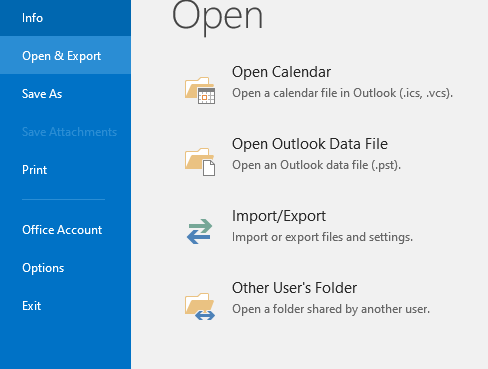
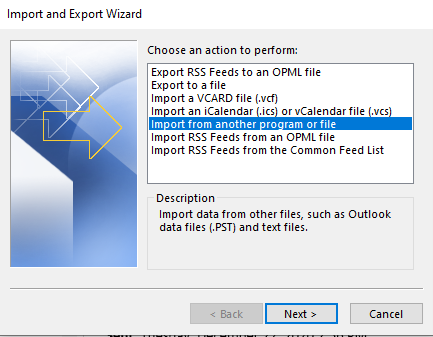
3. Select Import from another program or file and click Next.
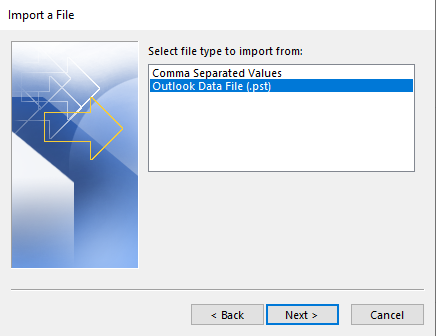
4. Choose Outlook Data File (.pst) and click Next.
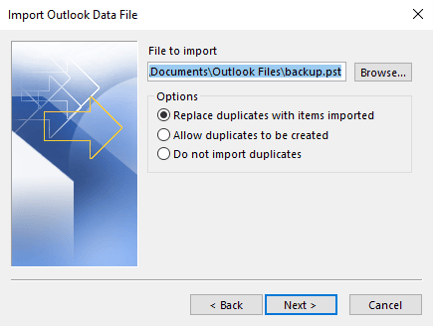
5. Browse to the PST file you want to import and choose how duplicates should be handled. Click Next.
6. Choose the folder to import from (typically the root or top folder) and select whether to include subfolders. To get all the messages, you need to tick the box to include subfolders.
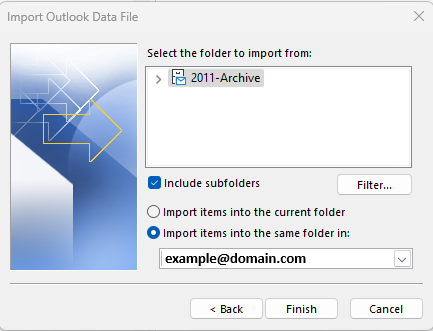
7. Choose your target location (Outlook account or folder) and click Finish. All mail items from the selected PST file will be imported to your profile.
🟣 Outlook 2016
Steps are the same as Outlook 2021/2019:
- File > Open & Export > Import/Export
- Follow the wizard as described above.
🔵 Outlook 2013
- Open Outlook.
- Click File > Open & Export > Import/Export.
- Follow the same steps as Outlook 2021/2019 to import your PST file.
🟠 Outlook 2010
- Open Outlook.
- Click File > Open > Import.
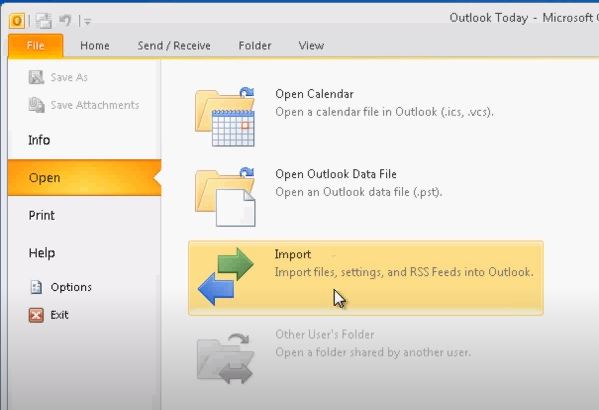
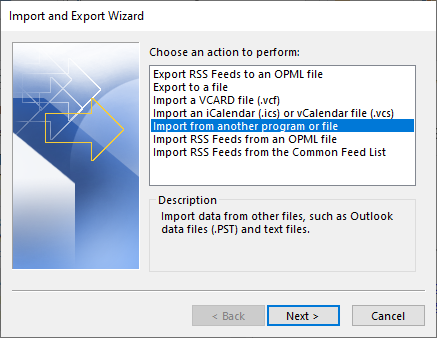
- Choose Import from another program or file, then click Next.
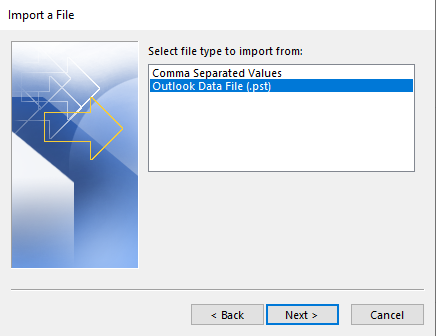
- Select Outlook Data File (.pst) and follow the prompts as described above.
🟡 Outlook 2007
- Open Outlook.
- Click File > Import and Export.
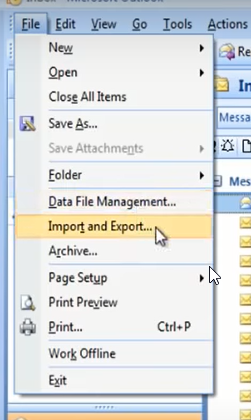
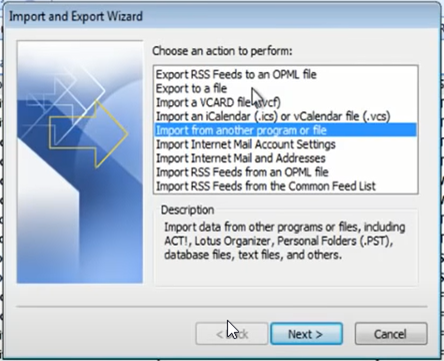
- Select Import from another program or file > Next.
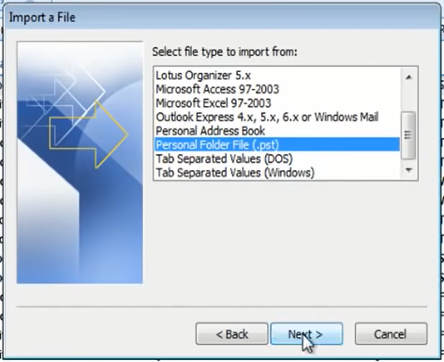
- Choose Personal Folder File (.pst) and click Next.
- Browse and select the PST file, set import options, and continue as above.
✅ Tips
- If you're importing data from an Ontrack tool, be sure to select the correct PST file that was generated.
- Make a backup of your current Outlook profile before importing, in case you need to revert.

 United States | English
 Locations
 Search






 Back to listing


